Seu Mac está exibindo a mensagem “Espaço insuficiente para enviar a gravação de tela para o app Fotos”? Experimente estas soluções.

Gravar a tela em um Mac geralmente é simples. Basta pressionar Command + Shift + 5, escolher Gravar Tela Inteira ou Gravar Parte Selecionada e começar a capturar a tela. Após interromper a gravação, o macOS salva o vídeo para que você possa visualizá-lo, editá-lo ou compartilhá-lo.
No entanto, ocasionalmente, você poderá se deparar com um erro como "Espaço insuficiente para enviar a gravação de tela para o app Fotos" ou uma mensagem semelhante, indicando que não há armazenamento suficiente disponível. Isso pode ser frustrante, principalmente quando você acabou de gravar uma reunião importante, um tutorial, uma sessão de jogo ou uma apresentação.
O problema geralmente significa que seu Mac não tem espaço de armazenamento suficiente para concluir a gravação ou mover o vídeo resultante para o app Fotos. Gravações de tela grandes podem consumir bastante espaço em disco, principalmente quando gravadas em alta resolução por um longo período.
Neste guia, exploraremos soluções para resolver o problema do Mac que exibe a mensagem "Espaço insuficiente para enviar gravações de tela para o app Fotos" e apresentaremos um gravador de tela dedicado que oferece maior controle sobre a qualidade da gravação, o local de armazenamento e o tamanho do arquivo.
1. Como resolver o problema do Mac que exibe a mensagem “Espaço insuficiente para enviar a gravação de tela para o app Fotos”
1.1 Verifique o espaço de armazenamento disponível no seu Mac
A primeira coisa a verificar é quanto espaço livre resta no seu Mac.
No macOS Ventura ou mais tarde:
- Clique no Cardápio da Apple no canto superior esquerdo.
- Selecione Configurações do sistema .
- Clique Em geral .
- Selecione Armazenar .
- Analise o espaço disponível e as categorias que estão sendo usadas no seu disco.
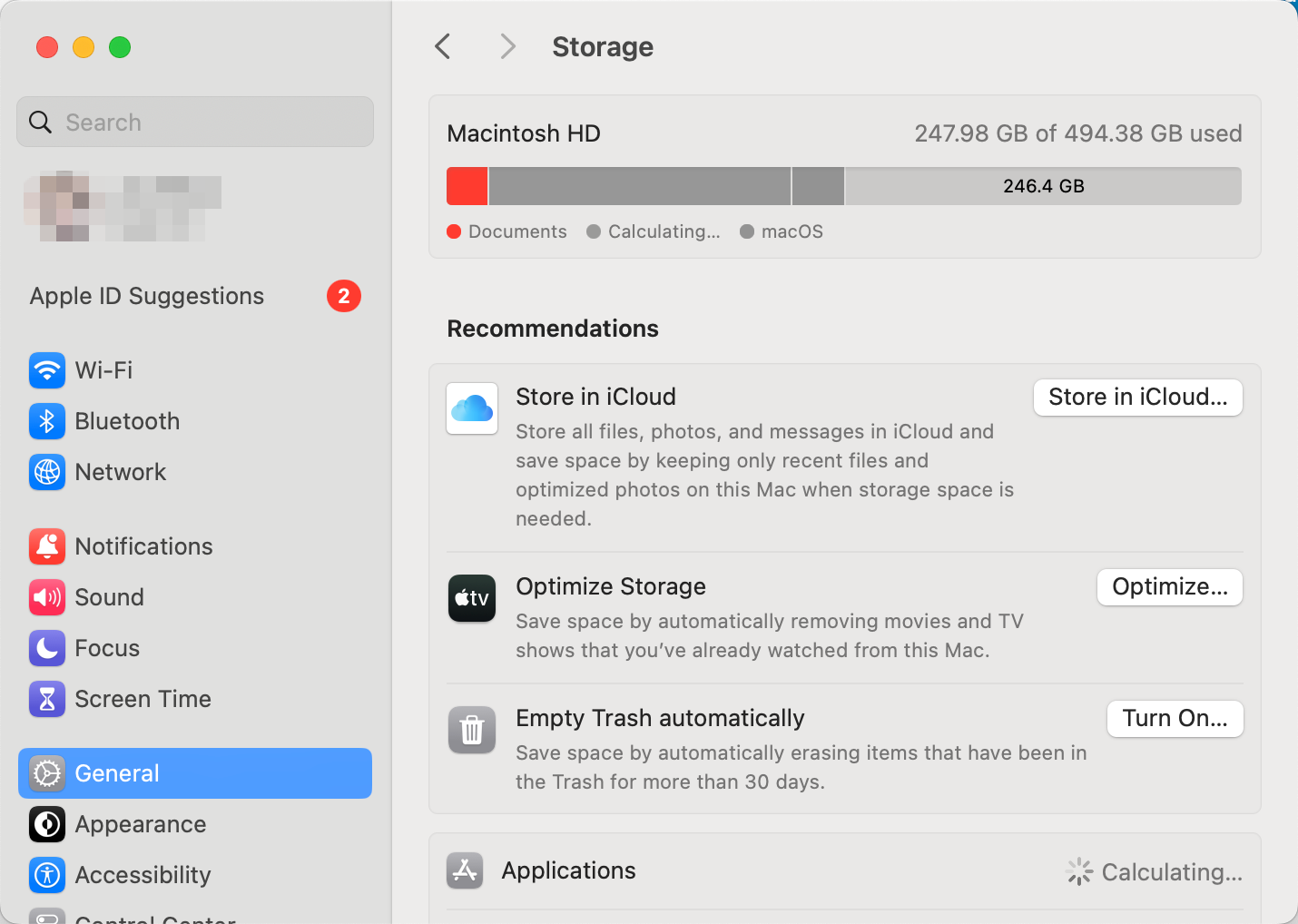
A Apple recomenda usar as configurações de Armazenamento para identificar categorias grandes e gerenciar arquivos desnecessários.
Se o seu Mac estiver quase cheio, a gravação de tela pode falhar porque o sistema precisa de espaço temporário e de trabalho adicional. Uma gravação longa pode exigir consideravelmente mais espaço do que um clipe curto.
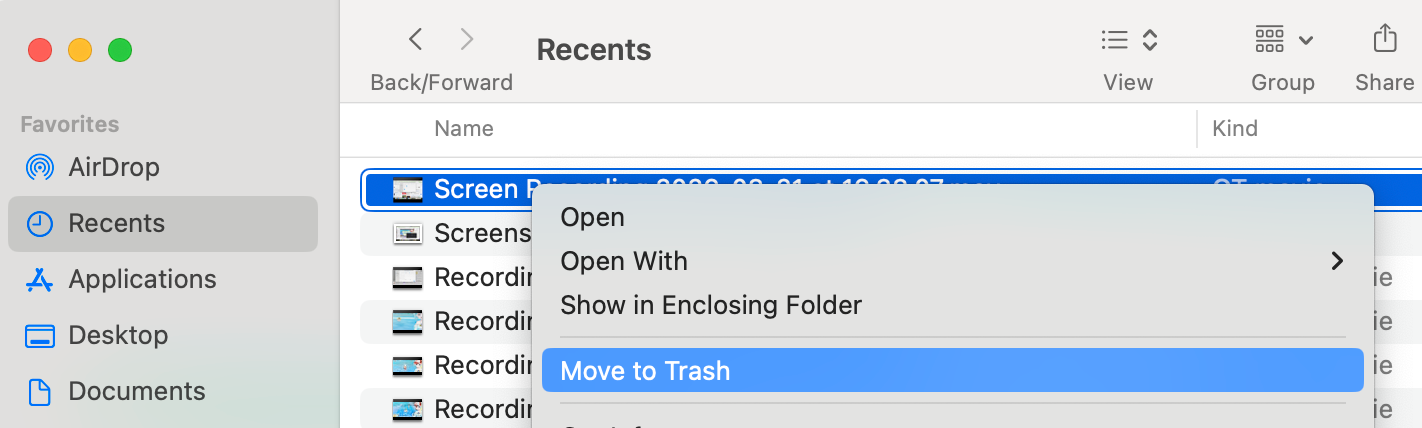
1.2 Excluir arquivos grandes desnecessários
Se o seu espaço de armazenamento estiver quase cheio, remova os arquivos que você não precisa mais.
Comece verificando locais comuns que demandam muito espaço de armazenamento:
- Transferências
- Filmes
- Área de trabalho
- Documentos
- Gravações de tela antigas
- Instaladores grandes e arquivos ZIP
- Aplicativos não utilizados
- Cópias de segurança antigas do iPhone ou iPad
- Fotos e vídeos duplicados
1.3 Esvazie a lixeira
Apagar arquivos não libera espaço de armazenamento imediatamente.
Ao mover arquivos para a Lixeira, o espaço pode permanecer ocupado até que a Lixeira seja esvaziada. Portanto, após remover arquivos indesejados, clique com o botão direito do mouse no arquivo. Lixo ícone e escolha Esvaziar o lixo .
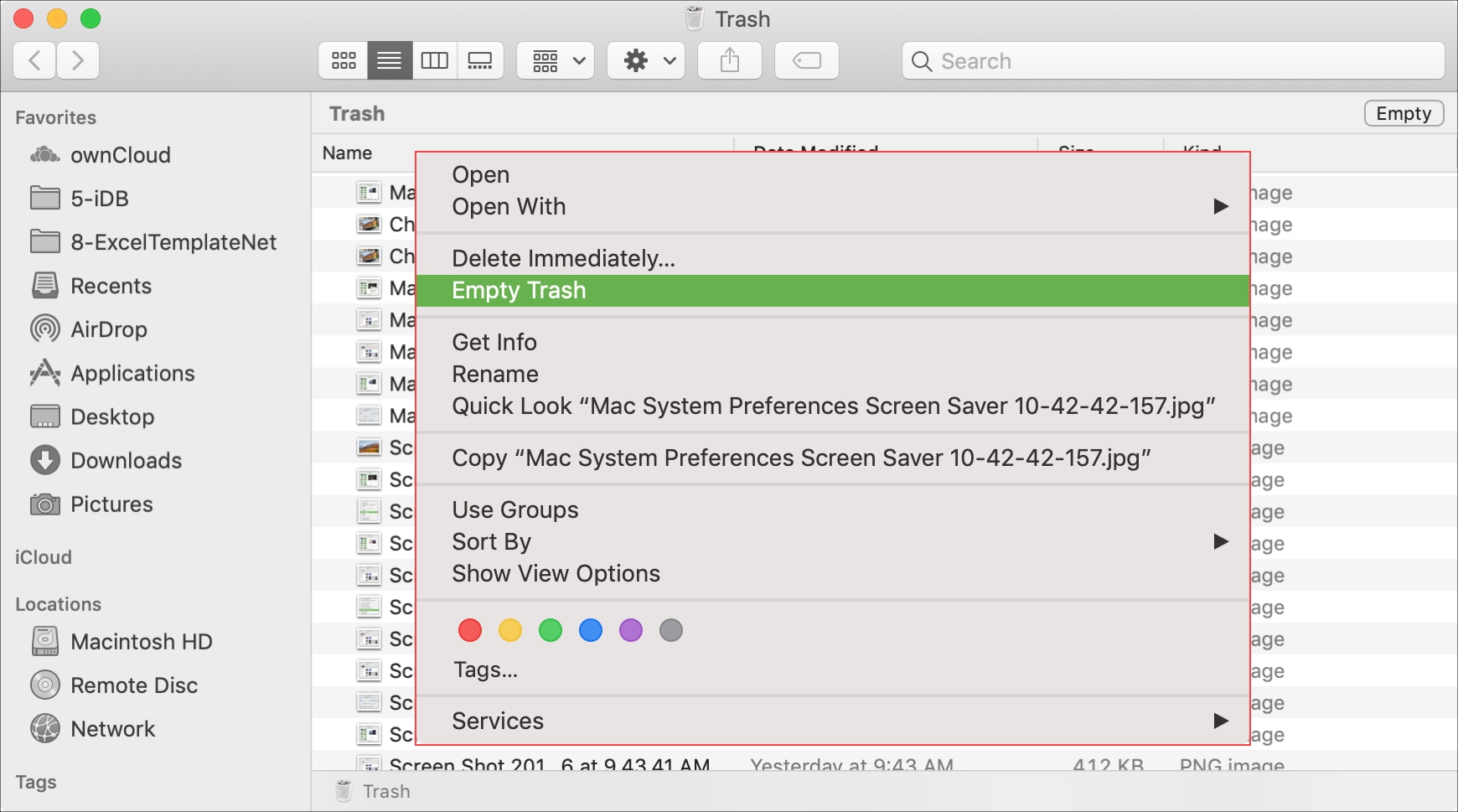
Essa simples medida pode, às vezes, recuperar vários gigabytes de espaço, especialmente se você excluiu recentemente vídeos ou aplicativos grandes.
1.4 Remover gravações de tela antigas
Se você costuma gravar a tela do seu Mac com frequência, gravações anteriores podem ser a causa da falta de espaço de armazenamento.
Procure nas suas pastas Filmes, Downloads, Área de Trabalho e outras pastas onde as gravações costumam ser salvas. Exclua as gravações que você não precisa mais ou mova-as para um SSD externo, disco rígido ou armazenamento em nuvem.
Também vale a pena verificar sua biblioteca do Fotos se você importa gravações de tela regularmente para o Fotos. Vídeos podem ocupar consideravelmente mais espaço do que documentos comuns, portanto, uma grande coleção pode consumir gradualmente o armazenamento disponível do seu Mac.
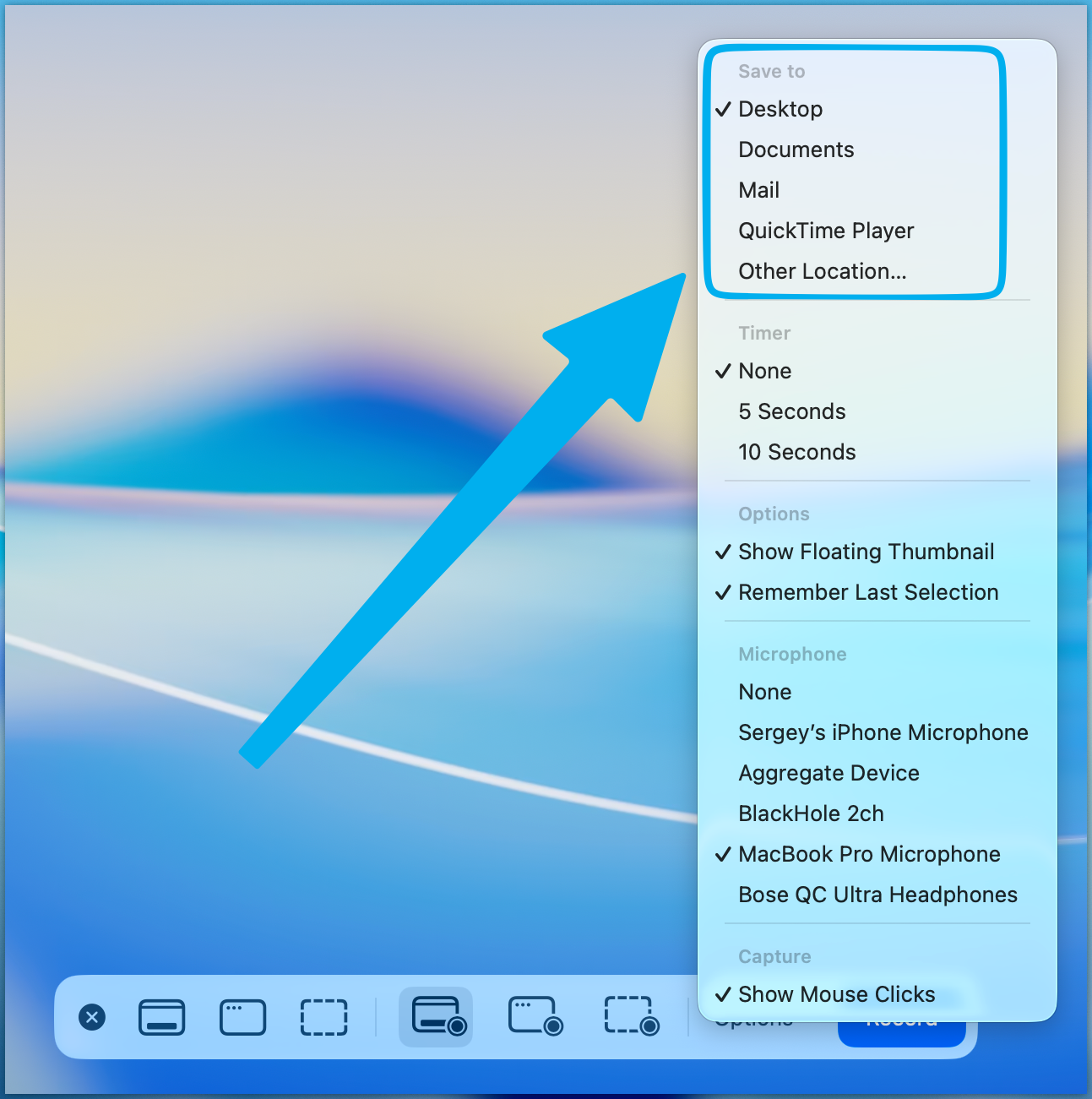
1.5 Salvar gravações de tela em um local diferente
O fluxo de trabalho padrão de gravação de tela pode não ser o ideal se o seu disco rígido interno estiver com pouco espaço disponível.
Imprensa Comando + Shift + 5 Para abrir os controles de captura de tela e gravação de tela, clique em Opções e verifique o Outro local seção. Dependendo da sua versão do macOS, você pode escolher outro destino disponível.
1.6 Reduza a resolução de gravação ou a área de gravação.
Gravações de maior qualidade geralmente exigem mais espaço de armazenamento.
Se você não precisa capturar toda a sua tela de alta resolução, considere gravar apenas a parte relevante. Uma área de gravação menor pode reduzir a quantidade de dados de vídeo capturados.
1.7 Reinicie o seu Mac e tente novamente.
Se você já liberou espaço de armazenamento, mas o erro persiste, reinicie o Mac antes de tentar gravar novamente.
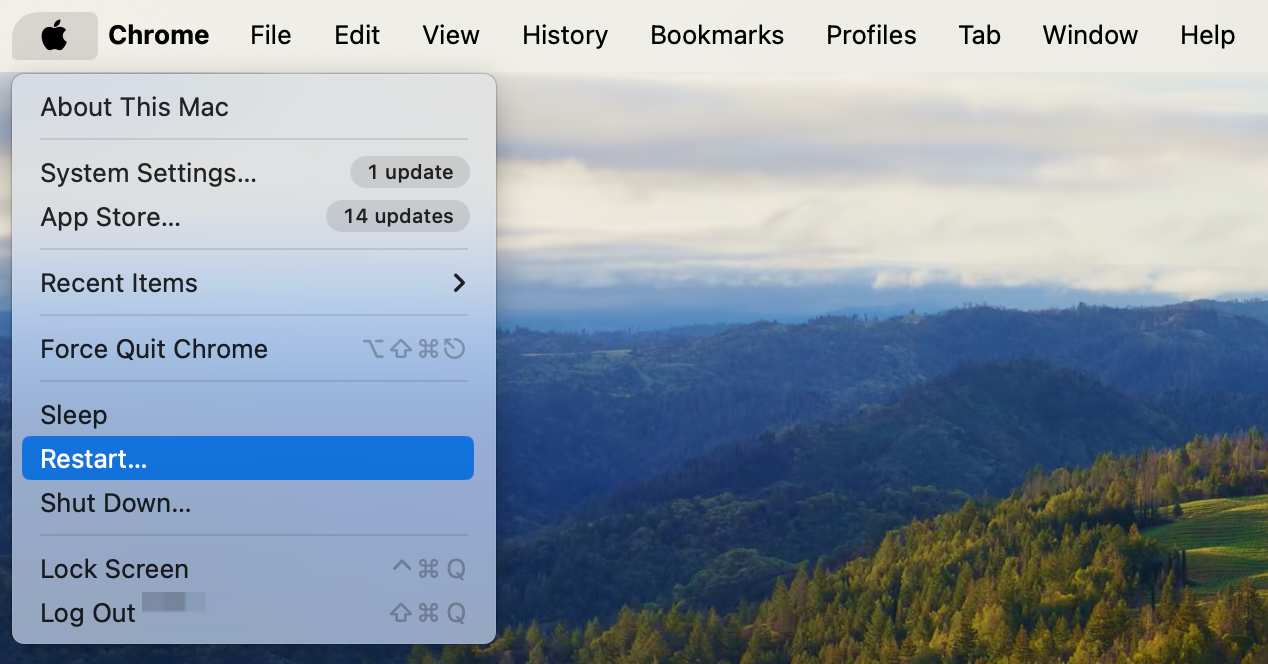
Reiniciar o sistema pode liberar recursos temporários e resolver um problema temporário com a gravação ou o fluxo de trabalho do Google Fotos.
Após reiniciar, verifique Configurações do sistema > Geral > Armazenamento Novamente, confirme se há espaço livre suficiente. Em seguida, faça uma breve gravação de teste antes de tentar uma sessão longa.
2. Avançado: Grave a tela do seu Mac com menos espaço de armazenamento usando Swyshare Recordit
Se você costuma enfrentar problemas de armazenamento com o gravador de tela integrado da Apple, uma ferramenta de terceiros pode oferecer mais controle sobre como e onde suas gravações são criadas.
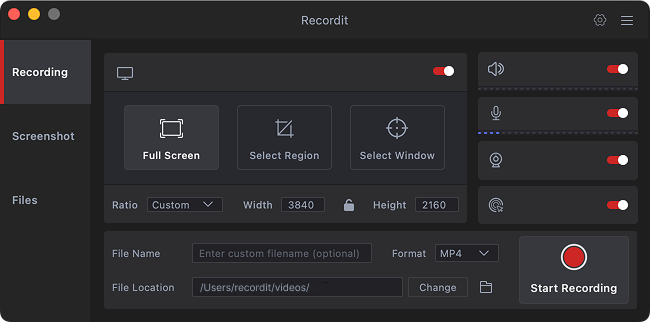
Swyshare Recordit É um gravador de tela desenvolvido para Windows e Mac. Ele permite que você escolha a área da tela, o formato de saída, a resolução, as fontes de áudio e o local do arquivo antes de gravar. A versão para Mac é compatível com macOS 11 e versões posteriores.
Recordit Oferece diversas opções que podem tornar a gravação de tela mais flexível:
- Grave a tela inteira, uma janela ou uma área personalizada.
- Escolha a resolução de gravação desejada.
- Grave o som do sistema, do microfone ou ambos.
- Salvar gravações em uma pasta selecionada
- Exporte em formatos como MP4, AVI, FLV e GIF.
- Capturar capturas de tela
- Grave imagens da webcam juntamente com a tela.
- Edite as gravações após a captura.
- Suporta resoluções de gravação de até 4K.
Como gravar a tela do Mac com Recordit :
- Baixar e instalar Recordit no seu Mac.
- Inicie o aplicativo e abra a interface de gravação.
- Selecione a área de gravação e uma fonte de áudio e, em seguida, escolha a resolução e o formato de saída de acordo com suas necessidades.
- Escolha uma pasta de destino com espaço de armazenamento livre suficiente e clique em Iniciar Gravação.
- Ao terminar, clique em Parar Gravação e abra a aba Arquivos para encontrar sua gravação.
3. Conclusão
A mensagem “Espaço insuficiente para enviar a gravação de tela para o app Fotos” geralmente significa que seu Mac precisa de mais espaço de armazenamento. Tente liberar espaço, excluir gravações antigas, alterar o local de salvamento ou diminuir a qualidade da gravação.
Para uma opção mais flexível, Swyshare Recordit Permite controlar a área de gravação, a qualidade, o áudio, o formato de saída e o local de salvamento. Pode ser uma alternativa conveniente para usuários que gravam a tela do Mac com frequência.