Como gravar vídeos protegidos sem que a tela fique preta?

A gravação de tela é uma maneira prática de salvar tutoriais, apresentações, aulas online e outros conteúdos em vídeo para consulta posterior. No entanto, você pode se deparar com um problema frustrante: o vídeo gravado aparece com a tela preta, mesmo que tenha sido reproduzido normalmente no seu monitor.
Isso geralmente acontece porque o reprodutor de vídeo usa tecnologias de proteção de conteúdo, como DRM (Digital Rights Management), aceleração de vídeo por hardware ou superfícies de reprodução protegidas. Esses mecanismos podem impedir que softwares comuns de captura de tela capturem os quadros do vídeo.
Se você estiver tentando gravar conteúdo para o qual tem autorização, existem várias abordagens legítimas que você pode tentar. Neste guia, explicaremos por que vídeos protegidos aparecem em preto nas gravações e exploraremos maneiras práticas de solucionar o problema.

1. Por que um vídeo protegido exibe uma tela preta?
Uma tela preta durante a gravação não significa necessariamente que seu gravador de tela esteja com defeito. Alguns sites e aplicativos impedem deliberadamente a captura de quadros de vídeo.
As causas comuns incluem:
- Proteção DRM: Os serviços de streaming podem criptografar vídeos e restringir a captura de tela.
- Aceleração por hardware: Seu navegador ou reprodutor de vídeo pode renderizar o vídeo por meio de um caminho gráfico protegido.
- Restrições ao nível da aplicação: Alguns aplicativos detectam capturas de tela ou tentativas de gravação de tela.
- Problemas com o driver gráfico: Drivers de GPU desatualizados ou incompatíveis podem, às vezes, causar gravações com tela preta.
- Compatibilidade do gravador: Alguns métodos de captura podem não funcionar corretamente com determinados navegadores ou reprodutores.
Antes de tentar soluções mais complexas, verifique se a tela preta ocorre apenas com um site ou aplicativo específico. Se o conteúdo comum da área de trabalho for gravado corretamente, mas um vídeo protegido não, a restrição provavelmente é intencional.
2. Como gravar vídeos protegidos sem que a tela fique preta?
Se você é o proprietário do conteúdo ou tem permissão para gravá-lo, comece com soluções que não exijam burlar a proteção da plataforma.
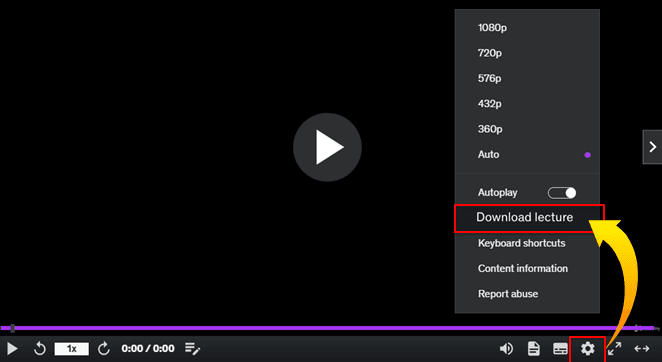
Método 1: Procure uma opção de download oficial
A solução mais fácil costuma ser verificar se a plataforma de vídeo oferece um recurso integrado de download ou visualização offline. Um download oficial permite acessar o conteúdo sem depender de captura de tela.
Para cursos online, vídeos comprados, plataformas de treinamento e outros serviços legítimos, procure por botões como: Download , Offline , Exportar , ou Salvar .
Método 2: Experimente um modo de gravação diferente
Os aplicativos de gravação de tela podem oferecer diversos modos de captura, incluindo:
- Gravação em tela cheia
- Gravação de janela
- Gravação de aplicativo
- Gravação de área selecionada
- Gravação de webcam e tela
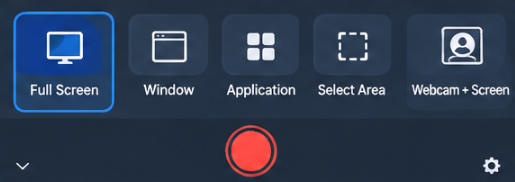
Se você estiver gravando conteúdo para o qual tem autorização, tente outro modo de gravação compatível. Você pode começar testando com um vídeo comum para verificar se o gravador está funcionando corretamente.
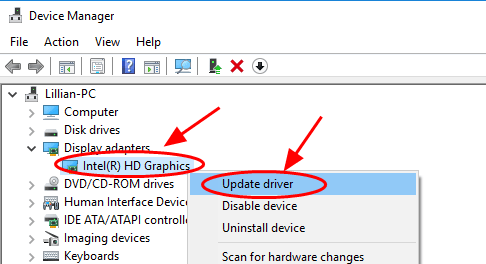
Método 3: Atualize o gravador de tela e o driver da placa de vídeo.
Um aplicativo de gravação ou driver de GPU desatualizado pode causar problemas inesperados de captura.
Atualize seu gravador de tela para a versão mais recente disponível e instale os drivers de vídeo mais recentes para o seu computador. Após a atualização, reinicie o sistema e teste a gravação novamente.
Se os aplicativos normais gravam com sucesso, mas o vídeo protegido permanece preto, o problema provavelmente está relacionado à proteção do vídeo e não ao seu computador.
Método 4: Verificar a aceleração de hardware do navegador
Se o vídeo estiver sendo reproduzido em um navegador, a aceleração de hardware pode afetar a forma como o vídeo é renderizado.
Para solucionar problemas, você pode verificar o desempenho do navegador ou as configurações do sistema para aceleração de hardware e testar se a alteração afeta a gravação. Reinicie o navegador após fazer a alteração.
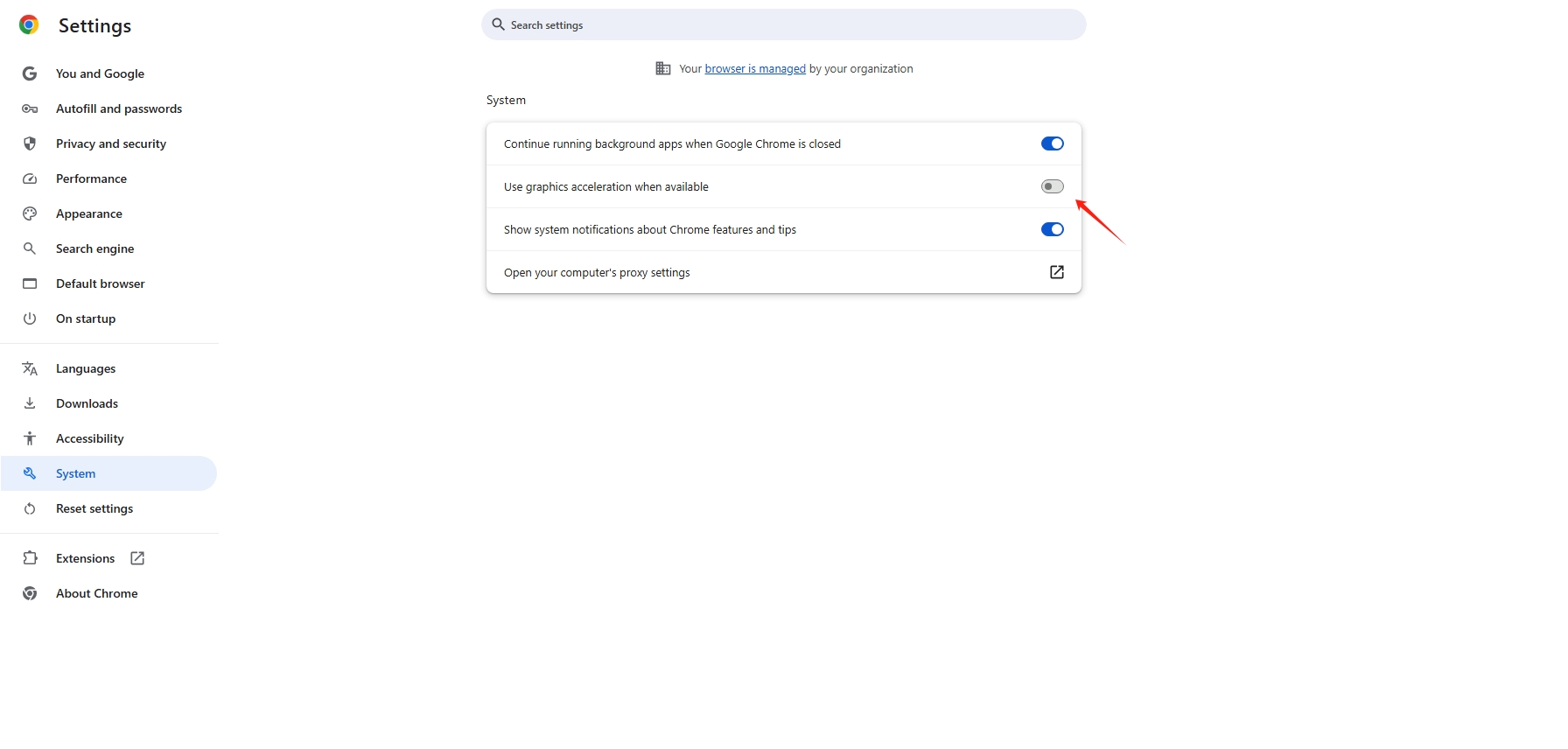
No entanto, isso não garante a solução do problema. Se a tela preta for causada por DRM, alterar a aceleração de hardware pode não ter efeito algum.
Método 5: Utilize um recurso de gravação autorizado
Algumas plataformas de vídeo oferecem funcionalidades próprias de gravação ou exportação. Isso pode ser particularmente útil para webinars, reuniões online, cursos de treinamento e conteúdo educacional.
Se você precisar gravar conteúdo protegido por motivos legítimos, verifique se o administrador da plataforma ou o proprietário do conteúdo pode habilitar a gravação ou fornecer uma cópia autorizada.
Método 6: Solicite ao proprietário do conteúdo uma versão gravável.
Se nenhum dos métodos de resolução de problemas técnicos funcionar, entrar em contato com o proprietário do conteúdo pode ser a solução mais simples.
O proprietário poderá fornecer uma versão para download, uma cópia desprotegida para uso autorizado ou acesso por meio de uma plataforma que suporte gravação.
3. Bônus: Grave vídeos com DRM sem tela preta com Swyshare Recordit
Se você estiver com dificuldades para resolver o problema de telas pretas ao gravar vídeos protegidos, Swyshare Recordit Oferece uma maneira prática de gravar vídeos com DRM sem tela preta em cenários de gravação compatíveis e autorizados. É um gravador de tela profissional para desktop que captura as atividades na tela, sendo ideal para gravar cursos online, tutoriais, apresentações, demonstrações e outros conteúdos para os quais você tenha permissão de gravação.
Como gravar vídeos com DRM sem tela preta Recordit :
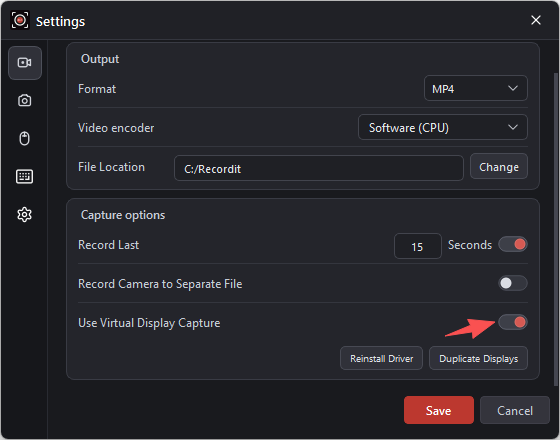
- Baixe, instale e execute Swyshare Recordit No seu Windows, abra Recordit Nas Preferências do programa, ative a opção “Usar Captura de Tela Virtual”.
- Selecione a tela inteira, uma janela específica ou a área onde o vídeo protegido está sendo reproduzido.
- Ative a gravação de áudio do sistema ou do microfone de acordo com suas necessidades.
- Clique em “Iniciar Gravação” e reproduza o vídeo autorizado. Ao terminar, clique em “Parar Gravação” para salvar a gravação e, em seguida, edite o vídeo conforme necessário.
4. Conclusão
Uma tela preta durante a gravação de vídeo pode ser causada por proteção DRM, reprodução acelerada por hardware, configurações do navegador, compatibilidade gráfica ou restrições de captura integradas. Se você tiver autorização para gravar o conteúdo, comece verificando as opções oficiais de download ou gravação da plataforma, atualizando seu software e drivers e testando diferentes configurações de gravação.
Para gravação regular da área de trabalho e tarefas permitidas de captura de vídeo, Swyshare Recordit Oferece uma solução prática com uma interface fácil de usar, captura de tela flexível e recursos de gravação de áudio. Se você procura um gravador de tela prático para tutoriais, apresentações, demonstrações e outros conteúdos autorizados, Recordit Vale a pena tentar.