Como tirar uma captura de tela de uma página da web longa no Mac?

Capturar telas é uma das tarefas mais comuns para usuários de Mac. Seja para salvar recibos online, documentar conteúdo da web, coletar materiais de pesquisa ou compartilhar informações com colegas, as capturas de tela oferecem uma maneira rápida e prática de preservar o que você vê na tela.
No entanto, as ferramentas padrão de captura de tela do macOS são projetadas para capturar apenas a parte visível de uma página da web. Ao lidar com artigos longos, páginas de produtos, feeds de mídias sociais ou documentação online, os usuários geralmente precisam de uma maneira de capturar a página inteira em vez de tirar várias capturas de tela e juntá-las manualmente.
Neste guia, abordaremos vários métodos para capturar páginas da web longas em um Mac e discutiremos uma solução mais abrangente para salvar páginas da web na íntegra.
1. Como tirar uma captura de tela de uma página da web longa no Mac
Método 1: Usar a função de exportação para PDF integrada do Safari
O Safari não oferece um botão direto para "captura de tela da página inteira", mas disponibiliza uma maneira fácil de salvar uma página da web completa como PDF.
Passos:
Abra a página da web no Safari > Clique Arquivo > Exportar como PDF > Escolha um local para salvar e clique Salvar .
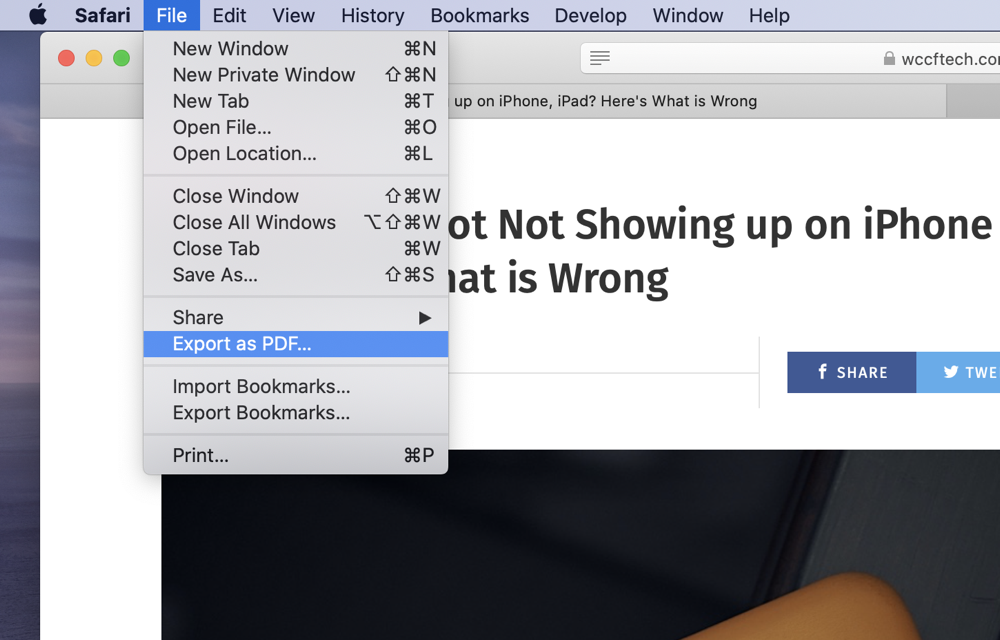
O PDF resultante contém a página web completa, incluindo o conteúdo que se estende para além da área visível no ecrã.
Prós :
- Integrado ao macOS.
- Não é necessário nenhum software adicional.
- Preserva o texto e o layout.
Contras :
- Salva como PDF em vez de imagem.
- A formatação de algumas páginas da web pode sofrer alterações.
- O conteúdo interativo pode não funcionar corretamente.
Método 2: Utilize o recurso de captura de tela de página inteira do Google Chrome
O Google Chrome inclui um recurso oculto que permite aos usuários capturar uma página da web inteira como imagem.
Passos :
Abra a página da web no Chrome e pressione Command + Option + I Para abrir as Ferramentas de Desenvolvedor > Pressione Command + Shift + P > Digite Capturar tela em tamanho real Em seguida, selecione o comando no menu.
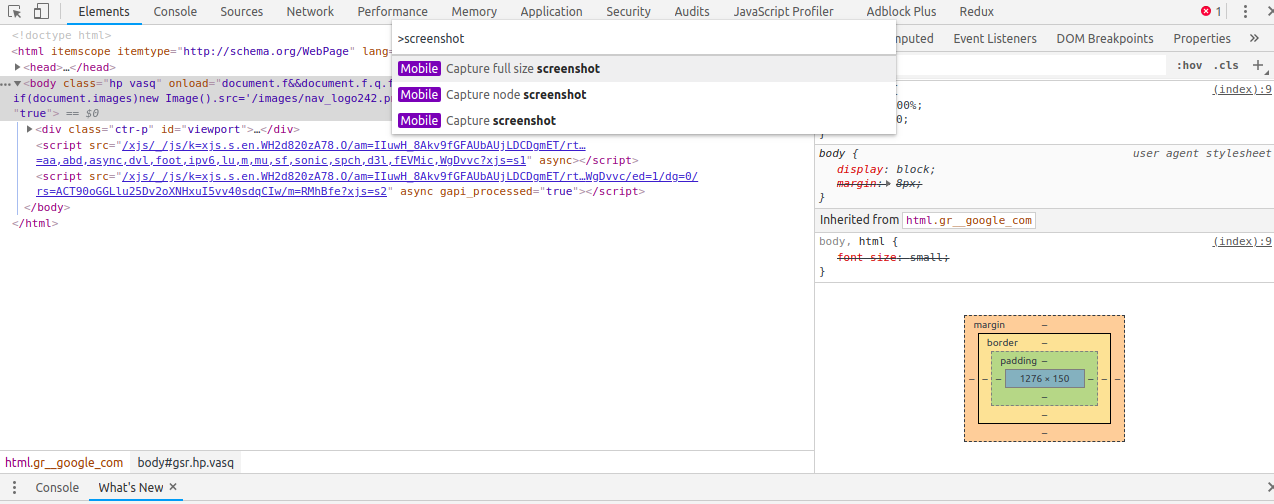
O Chrome irá capturar automaticamente a página web inteira e salvá-la como uma imagem PNG.
Prós :
- Produz uma imagem em página inteira verdadeira.
- Não são necessárias extensões de navegador.
- Resultado de alta qualidade.
Contras :
- Não é fácil de descobrir.
- Requer acesso às Ferramentas de Desenvolvedor.
- Páginas grandes podem gerar arquivos de imagem muito grandes.
Método 3: Use a ferramenta de captura de tela integrada do Firefox
O Firefox oferece um dos métodos mais simples para capturar páginas da web longas.
Passos:
- Abra a página da web no Firefox e clique com o botão direito do mouse em qualquer lugar da página.
- Selecione Tirar uma captura de tela , então clique Salvar página inteira e salve a captura de tela.
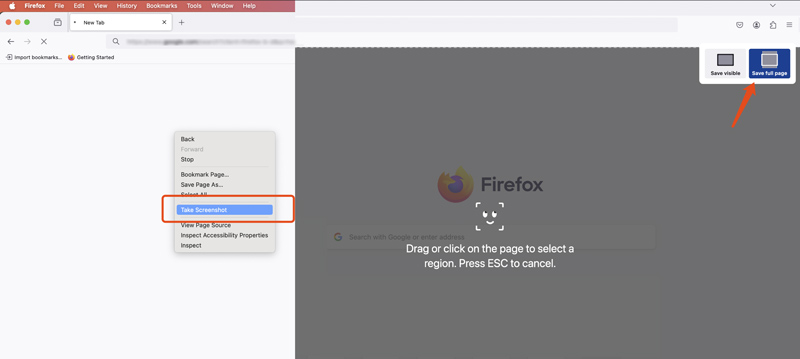
O Firefox percorre automaticamente a página e gera uma imagem completa.
Prós:
- Extremamente fácil de usar.
- Integrado diretamente ao Firefox.
- Captura páginas inteiras com um único clique.
Contras:
- Requer a instalação do Firefox.
- Páginas web extensas podem gerar arquivos grandes.
Método 4: Usar extensões de captura de tela
Diversas extensões de navegador são especializadas em capturar telas inteiras.
As opções mais populares incluem:
- GoFullPage
- Captura de tela incrível
- Captura de tela do Nimbus
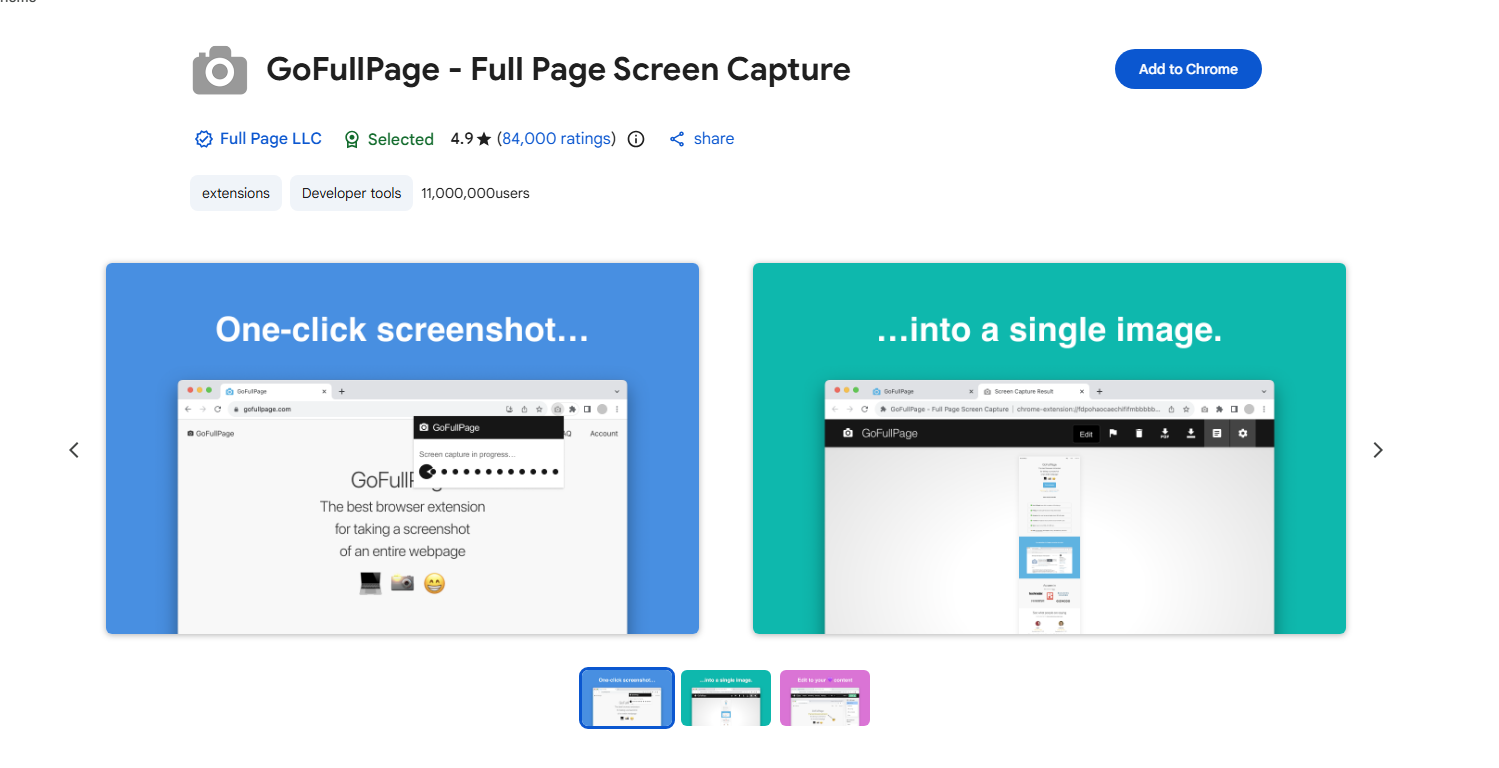
Essas extensões geralmente adicionam um botão à barra de ferramentas que rola automaticamente pela página da web e captura a página inteira.
Prós :
- Operação prática com um único clique.
- Ferramentas adicionais de anotação.
- Compatível com vários navegadores.
Contras :
- Algumas funcionalidades exigem assinaturas pagas.
- As permissões do navegador podem suscitar preocupações com a privacidade.
- Os resultados podem variar dependendo da complexidade da página web.
Método 5: Usar aplicativos de captura de tela de terceiros
Softwares dedicados à captura de tela geralmente oferecem recursos avançados de captura.
Exemplos incluem:
- Pegadinha
- CleanShot X
- Shottr
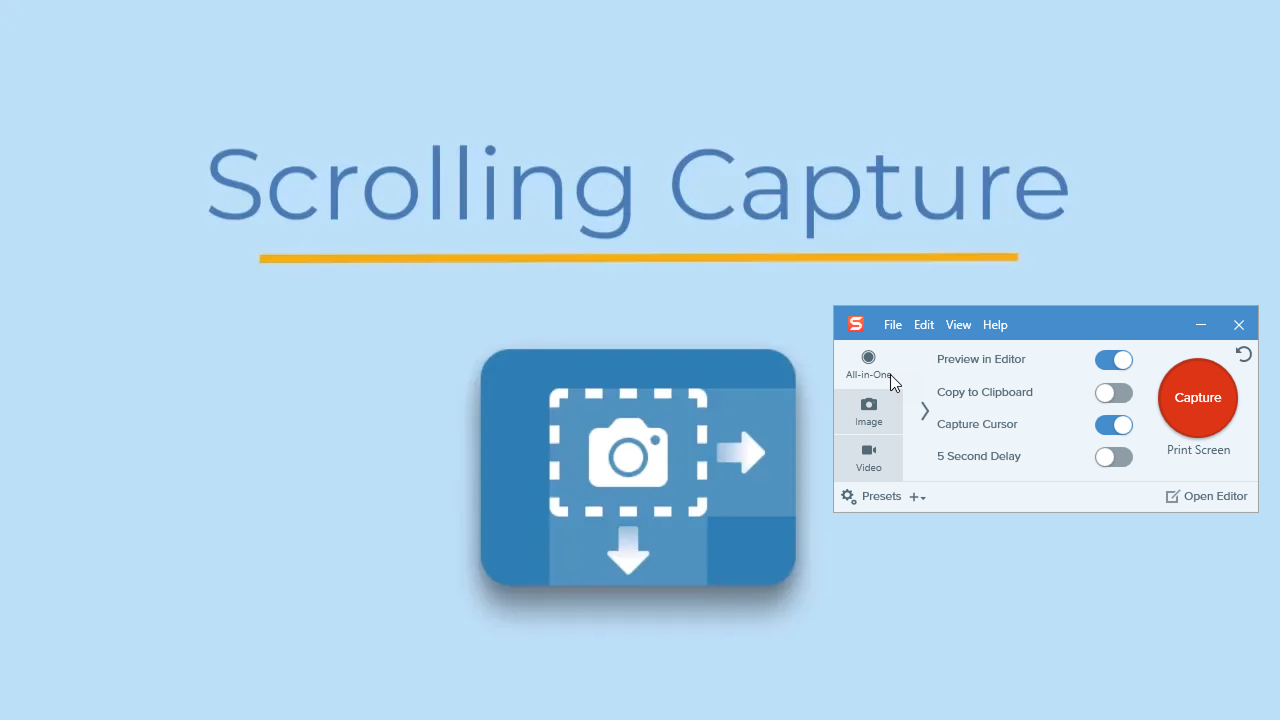
Essas ferramentas podem capturar páginas da web em movimento, adicionar anotações a capturas de tela e exportar imagens em vários formatos.
Prós:
- Funcionalidades de nível profissional.
- Ferramentas de anotação e edição.
- Melhor controle sobre a qualidade da produção.
Contras:
- Custo adicional.
- Requer instalação e configuração.
2. Arquive uma página com o ArchiveKit em vez de tirar uma captura de tela no Mac.
Embora as capturas de tela sejam úteis para preservar conteúdo visual, nem sempre são a melhor solução. Uma captura de tela é essencialmente uma imagem estática. Uma vez capturada, não é possível interagir com links, pesquisar texto, copiar conteúdo facilmente ou preservar elementos dinâmicos da página.
Para usuários que precisam salvar páginas da web para pesquisa, documentação, conformidade, visualização offline ou armazenamento de longo prazo, o arquivamento de páginas da web oferece uma alternativa muito mais poderosa.
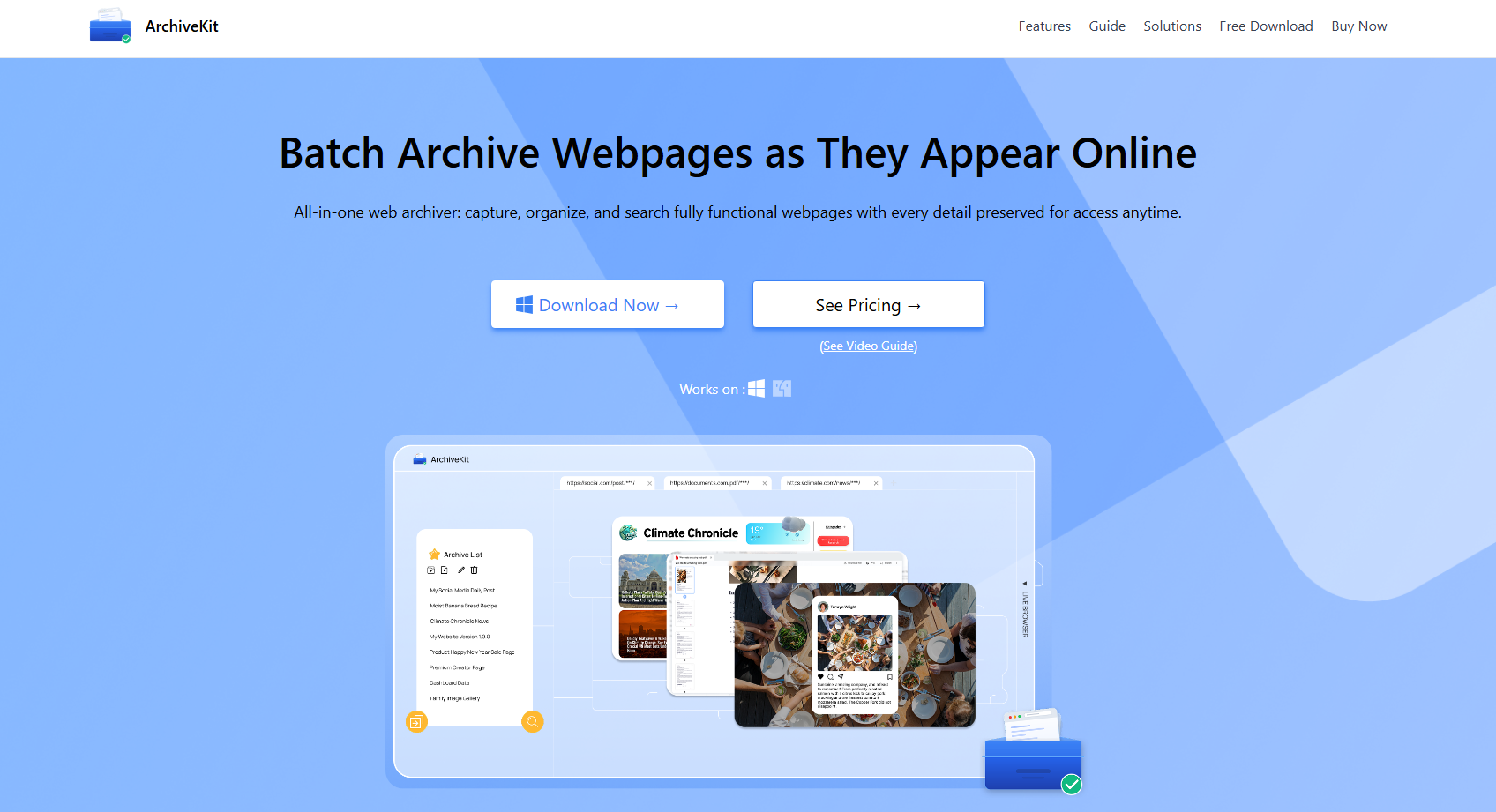
Kit de Arquivo O ArchiveKit é uma ferramenta de arquivamento de páginas web projetada para salvar páginas completas para acesso offline. Em vez de capturar uma simples imagem, o ArchiveKit preserva o conteúdo da página, permitindo que os usuários revisitem as páginas mesmo quando elas não estiverem mais disponíveis online.
O ArchiveKit ajuda os usuários:
- Arquivar em lote páginas da web completas tal como aparecem online.
- Modo de navegador ao vivo para acessar conteúdo em páginas da web nas quais você está conectado.
- Destaque trechos importantes para facilitar a revisão e a pesquisa.
- Leia artigos em um Modo Leitor limpo
- Pesquise e gerencie páginas arquivadas com facilidade.
- Atualize as páginas salvas quando os sites forem alterados.
3. Conclusão
Capturar uma página da web extensa em um Mac é mais fácil do que nunca, graças aos recursos integrados do navegador, extensões e aplicativos dedicados para captura de tela. Seja com a exportação para PDF do Safari, a ferramenta de captura de página inteira do Chrome, o recurso de captura integrado do Firefox ou uma solução de terceiros, você pode preservar páginas da web inteiras sem precisar juntar manualmente várias capturas de tela.
No entanto, as capturas de tela ainda são limitadas, pois capturam apenas uma imagem estática de uma página da web. Elas não preservam links, texto pesquisável, conteúdo dinâmico ou a experiência de navegação original. Se você deseja salvar páginas da web para referência futura, arquivá-las geralmente é uma opção melhor do que capturar telas.
O ArchiveKit oferece uma maneira mais completa de preservar conteúdo da web, salvando páginas inteiras para acesso offline. Com recursos como arquivamento em lote de páginas, Modo Navegador ao Vivo para conteúdo acessado, Modo Leitura para leitura sem distrações, destaque de texto para pesquisa e ferramentas poderosas de busca e organização, o ArchiveKit vai além do que as capturas de tela tradicionais podem oferecer. Se você costuma salvar conteúdo online importante no seu Mac, Kit de Arquivo É uma alternativa inteligente e eficiente que ajuda a garantir que informações valiosas permaneçam acessíveis sempre que você precisar delas.