How to Record Screen and Webcam at the Same Time?

Recording both your screen and webcam simultaneously has become essential for a wide range of content creators and professionals. Whether you’re creating online tutorials, recording gameplay, hosting virtual presentations, or conducting remote training sessions, combining screen capture with a webcam overlay adds a personal and professional touch to your videos. It allows viewers to see not just what you’re doing on your screen, but also your facial expressions and reactions—making the content more engaging and easier to follow.
This dual recording style is especially popular among educators, YouTubers, business professionals, and streamers. For example, teachers can explain concepts while appearing on-screen, gamers can react live to gameplay, and marketers can deliver more relatable product demos. The good news is that recording both screen and webcam at the same time is easier than ever, thanks to modern software tools designed for beginners and professionals alike.
In this guide, we’ll walk you through how to record your screen and webcam at the same time using different methods, along with practical tips to improve your recordings.
1. Use Dedicated Screen Recording Software
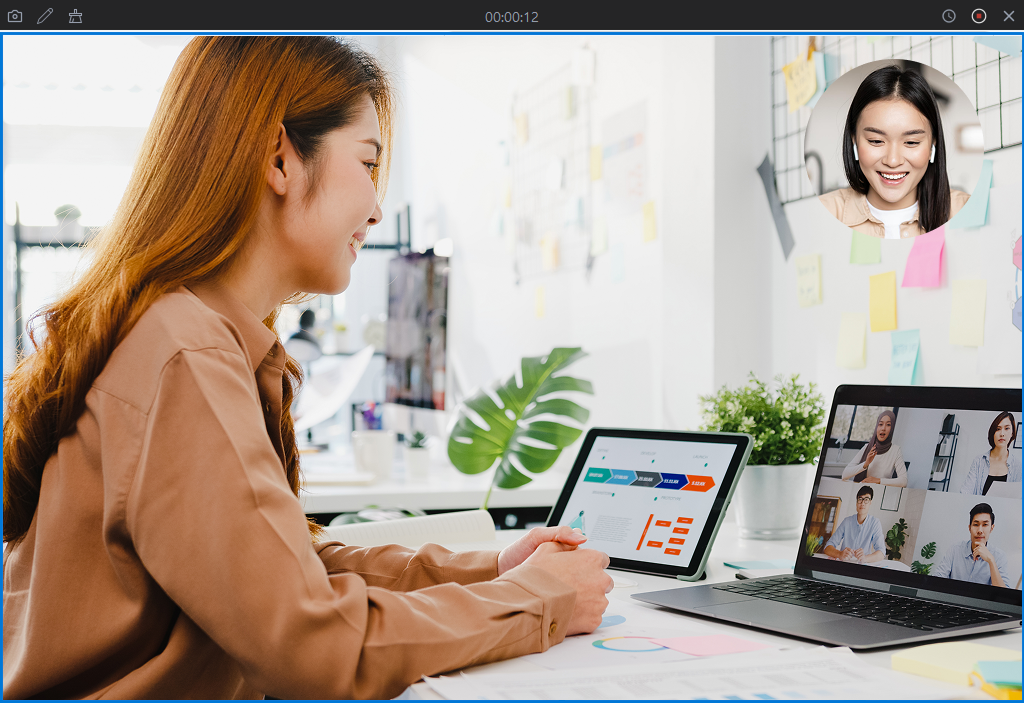
The easiest and most efficient way to record both screen and webcam is by using dedicated screen recording software. Screen recorders like Swyshare Recordit are designed specifically for this purpose and often come with built-in features like webcam overlay, audio recording, and editing tools.
Steps to follow:
- Choose a reliable screen recording tool that supports webcam capture, e.g. Recordit .
- Open the program and navigate to the recording settings, select recording area and turn on the webcam option, then choose your microphone and system audio if needed.
- Click “Start Recording” button to begin capturing both your screen and webcam simultaneously.
- Once complete, stop recording and find the recorded video in Recordit Aba “Arquivos”.
Why this method works best:
Dedicated tools offer a seamless experience with minimal setup. They also provide better quality and customization options.
2. Use Built-in Features in Streaming Software
Another popular method is using streaming software that also supports recording. These tools are often more advanced and offer greater flexibility in layout and customization.
Steps to follow:
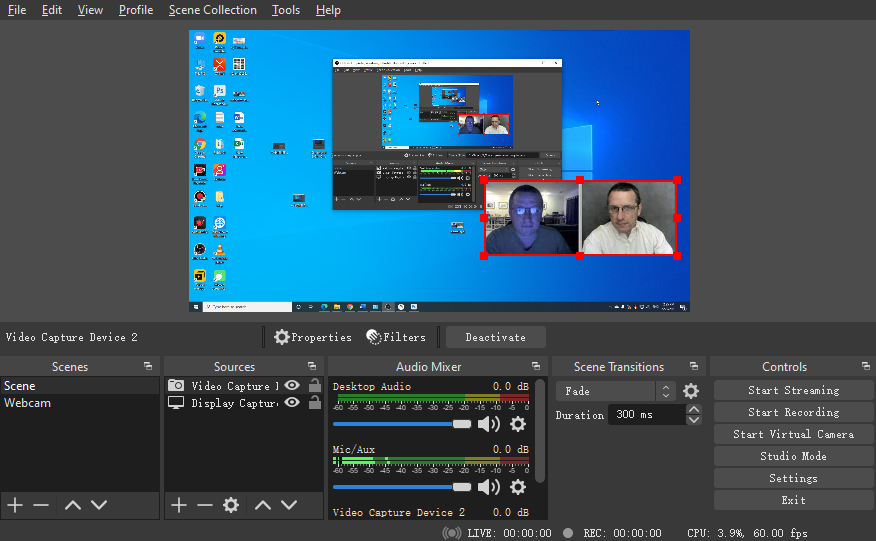
- Download and install a tool that supports multiple input sources, e.g. OBS Studio.
- Add a new scene where you’ll combine your screen and webcam; Choose between “Display Capture” and “Window Capture” for screen recording.
- Add your webcam as a separate source; Resize and position the webcam feed on top of the screen capture.
- Verify that both microphone and system audio are correctly configured.
- Click the “Start Recording” button. When done, stop recording and export your video file.
Prós:
- Highly customizable layouts
- Ideal for professional recordings and live streaming
- Supports multiple scenes and transitions
Contras:
- Slightly more complex setup
- May require a more powerful computer
3. Use Online Screen Recorders
If you don’t want to install software, online screen recorders can be a quick solution. Many web-based tools now support webcam recording alongside screen capture.
Steps to follow:
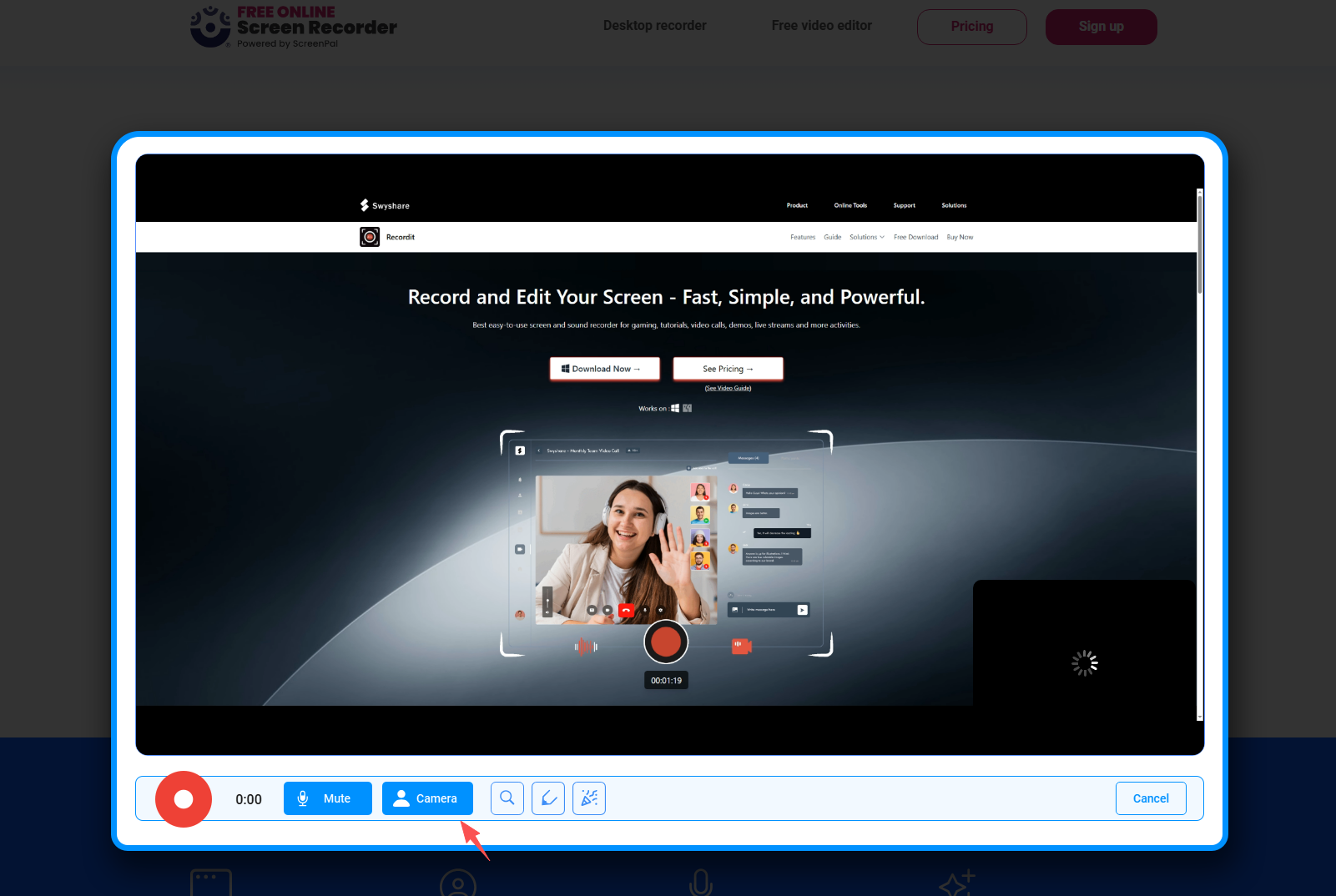
- Open an online screen recorder in your browser, e.g. ScreenPal.
- Grant permissions for screen and camera access.
- Select the screen area you want to record and enable your webcam.
- Start recording directly from your browser, and download the video after recording.
Prós:
- Não requer instalação
- Fácil de usar
- Accessible from any device
Contras:
- Limited features
- May have recording time limits
- Dependent on internet performance
4. Use Built-in OS Tools (with Limitations)
Some operating systems offer built-in screen recording tools, but they often lack webcam integration. However, you can combine them with third-party webcam apps as a workaround.
Example approach:
- Use a system screen recorder to capture your screen
- Run a webcam app simultaneously
- Combine the two videos later using video editing software
Observação: This method is less convenient and requires post-editing, but it can work if you prefer not to install additional software.
5. Tips for Better Screen + Webcam Recording
To make your recordings look more professional, keep these tips in mind:
1) Use good lighting
Ensure your face is well-lit. Natural light or a ring light can significantly improve webcam quality.
2) Choose a clean background
A clutter-free or virtual background helps maintain focus on you.
3) Position your webcam strategically
Place it where it doesn’t block important screen elements—typically the bottom corner.
4) Use a quality microphone
Clear sound quality is just as crucial as high-quality video.
5) Record in high resolution
Aim for at least 1080p for a crisp and professional look.
6) Test before recording
Always do a short test to check audio levels, webcam placement, and screen capture settings.
7) Keep file sizes in mind
High-quality recordings can be large, so ensure you have enough storage space.
5. Conclusão
Recording both your screen and webcam at the same time is no longer a complicated task—it’s now a standard practice for anyone looking to create engaging, professional-quality content.
While there are multiple methods available—ranging from advanced tools like OBS Studio to browser-based solutions—the most efficient and beginner-friendly option is still dedicated screen recording software. That’s where Swyshare Recordit destaca-se.
With its intuitive interface, built-in webcam overlay, and easy audio setup, Recordit allows you to start recording in just a few clicks—no complicated configuration required. It’s especially ideal for users who want high-quality results without spending time learning complex tools.
In short, if you want a reliable, fast, and hassle-free way to record your screen and webcam simultaneously, Recordit is a smart choice worth trying.