Guia completo de solução de problemas para corrigir o problema do Nvidia Instant Replay que continua desligando.

Nvidia’s Instant Replay feature is one of the most convenient tools for capturing unexpected highlights, clutch gameplay moments, or important events that happen before you manually hit Record. But for many users, Instant Replay has one recurring problem: it keeps turning off by itself. This issue can be frustrating, especially when you believe you’ve captured a moment—only to discover that Instant Replay was disabled minutes earlier.
Fortunately, this problem is usually caused by a handful of predictable factors, and most are easy to fix with the right steps. This guide explores why Nvidia Instant Replay keeps turning off and provides a complete troubleshooting process to help you get it running reliably.
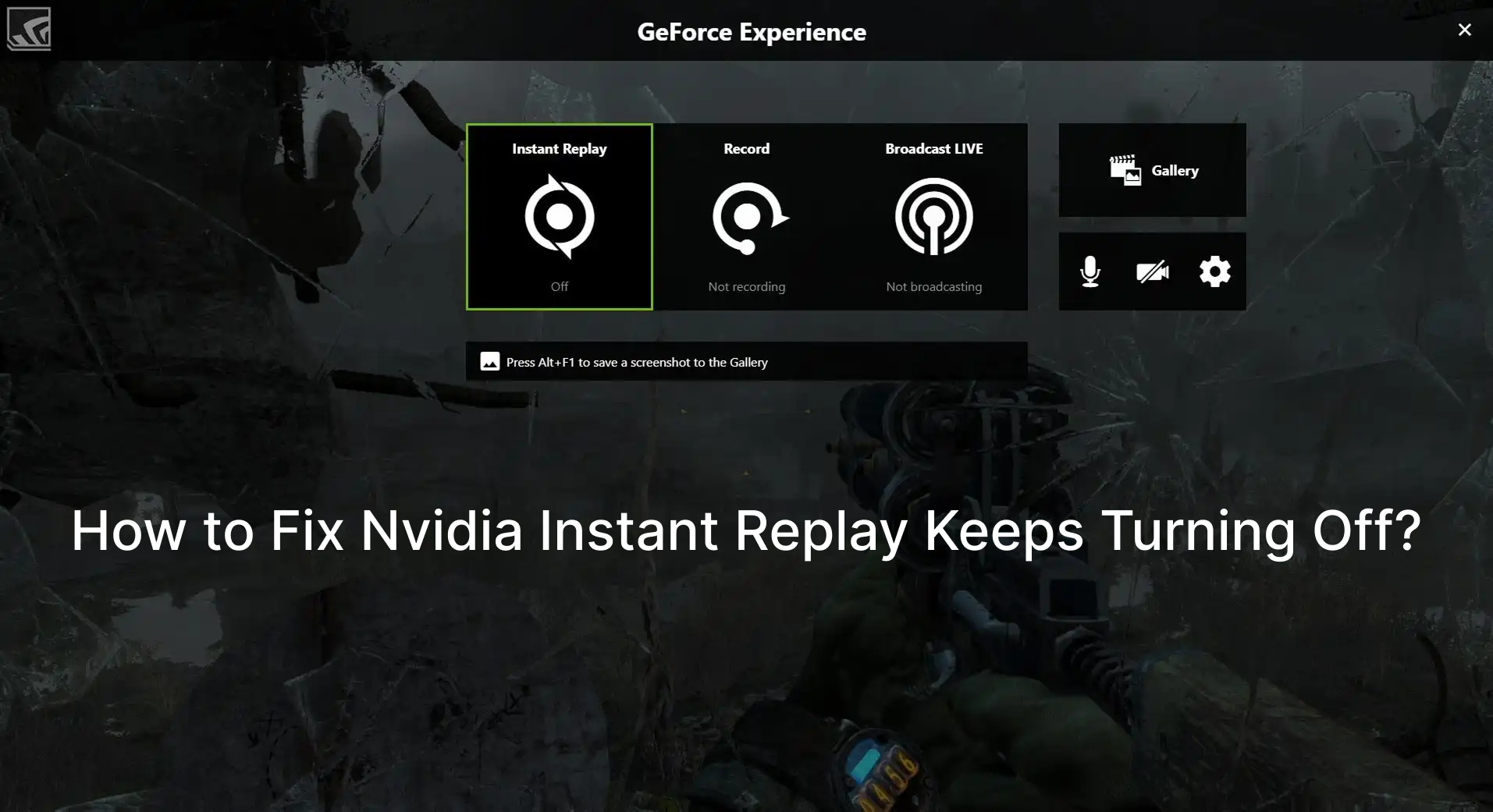
1. Why Does Nvidia Instant Replay Keep Turning Off?
Here are the most frequent causes summarized:
- In-Game Overlay crash or failure
- Espaço em disco insuficiente on the recording drive
- Nvidia services not running
- Driver bugs or corrupted GeForce Experience installation
- HDR / Auto HDR issues with ShadowPlay
- Low-power GPU mode , especially on laptops
- Unsupported display mode (e.g., fullscreen exclusive issues)
- Overly high recording settings causing GPU overload
- Windows permissions conflicts
Any of these can cause Instant Replay to silently disable itself. Now let’s go through the steps to fix each one.
2. How to Fix Nvidia Instant Replay Keeps Turning Off?
2.1 Restart the In-Game Overlay (Quick Fix)
The overlay powers Instant Replay; if it crashes, Instant Replay turns off automatically.
How to reset it:
Abrir Experiência GeForce > Toggle Sobreposição no jogo OFF → then ON again > Press Alt + Z to confirm that the overlay appears > Re-enable Repetição instantânea .
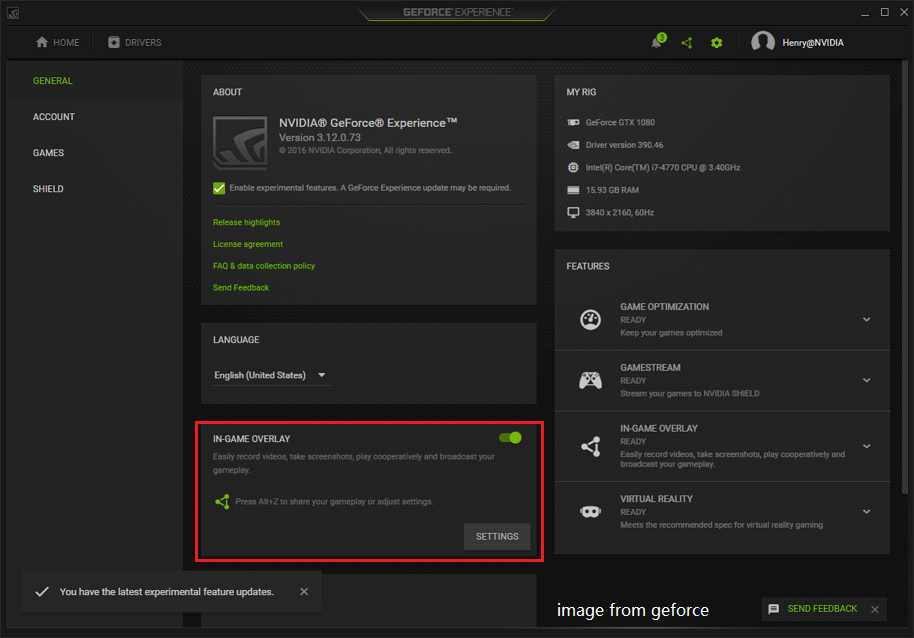
This simple reset solves the issue for many users.
2.2 Check Disk Space on the Recording Drive
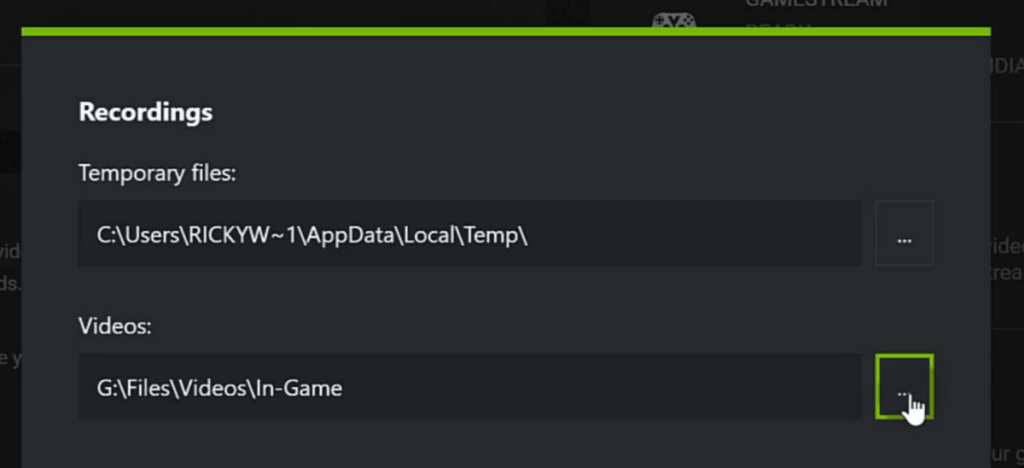
ShadowPlay requires continuous writing. If your drive is full, Instant Replay disables itself.
Passos:
- Vá para GeForce Experience > Settings > Recordings .
- Check the Videos location and ensure you have at least 3–5 GB free , ideally more.
- Move recordings to another drive if needed.
2.3 Restart Required Nvidia Services
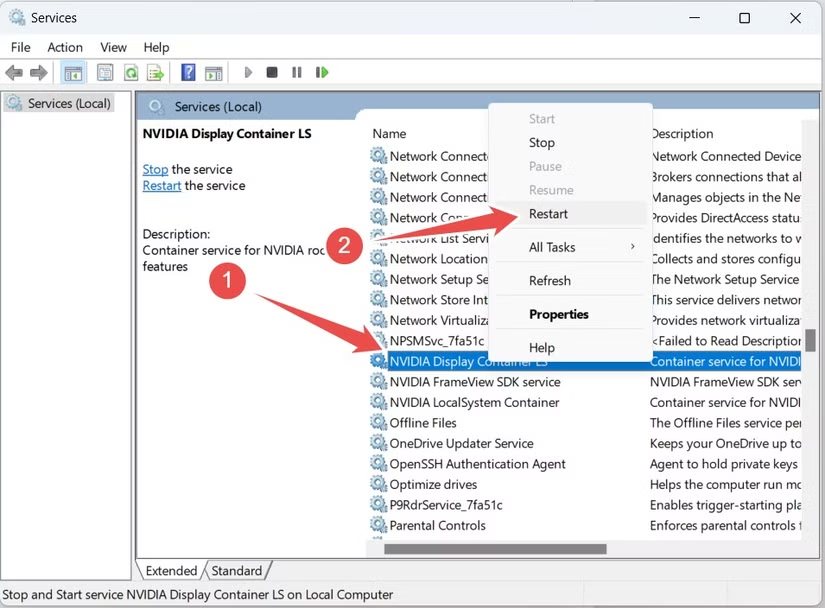
If Nvidia background services stop working, features like Instant Replay fail silently.
Make sure these services are running:
- NVIDIA Display Container LS
- Contêiner do Sistema Local da NVIDIA
- NVIDIA FrameView SDK Service
How to check:
Imprensa
Ganhar + R
→ tipo
services.msc
> Find each Nvidia service > Set
Startup Type: Automatic
> Clique
Reiniciar
.
2.4 Update GPU Drivers
Driver glitches frequently cause ShadowPlay features to malfunction.
Como atualizar:
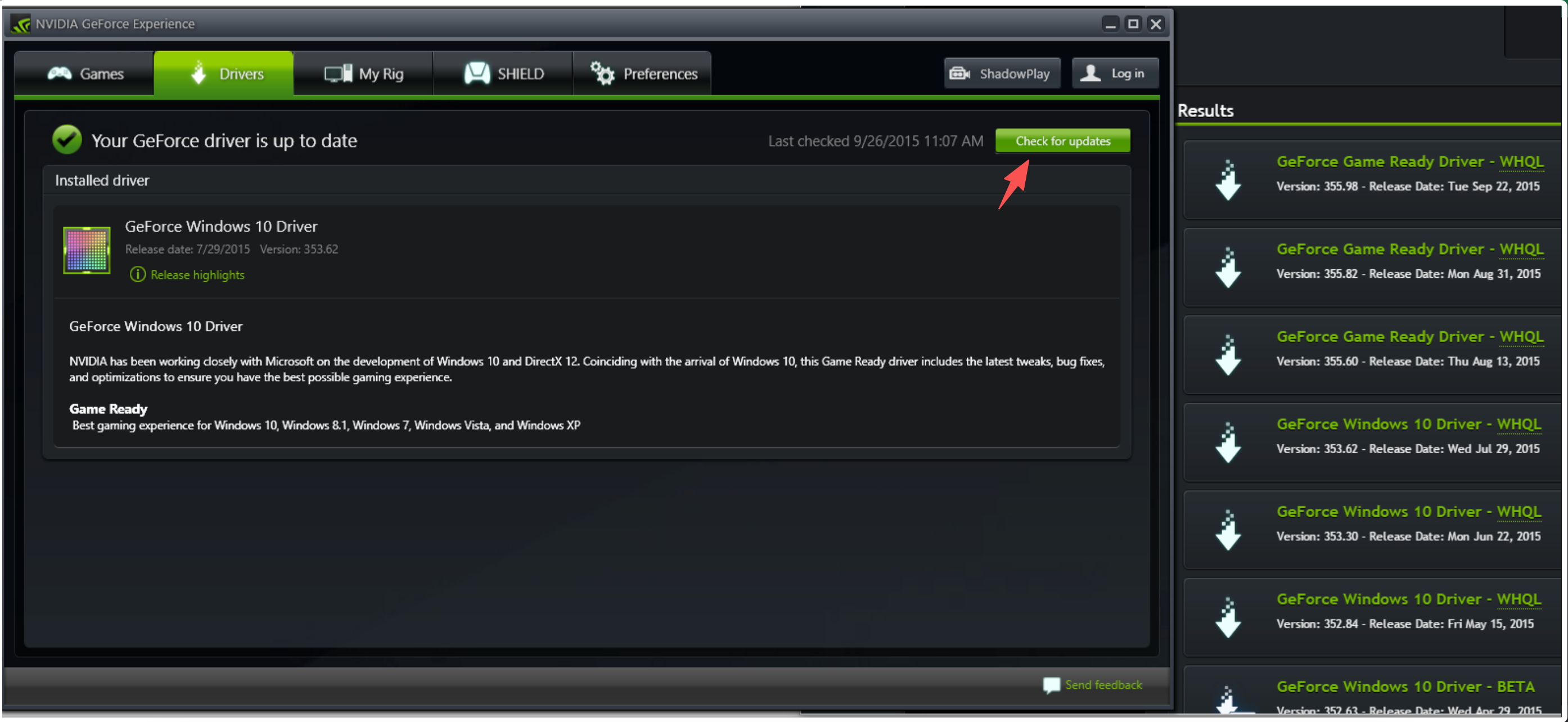
- Abrir GeForce Experience > Drivers .
- Clique Verificar atualizações .
- Download the newest Game Ready Driver.
2.5 Turn Off HDR or Auto HDR
ShadowPlay often struggles with HDR capture, leading to crashes or auto-disable issues.
Try disabling:
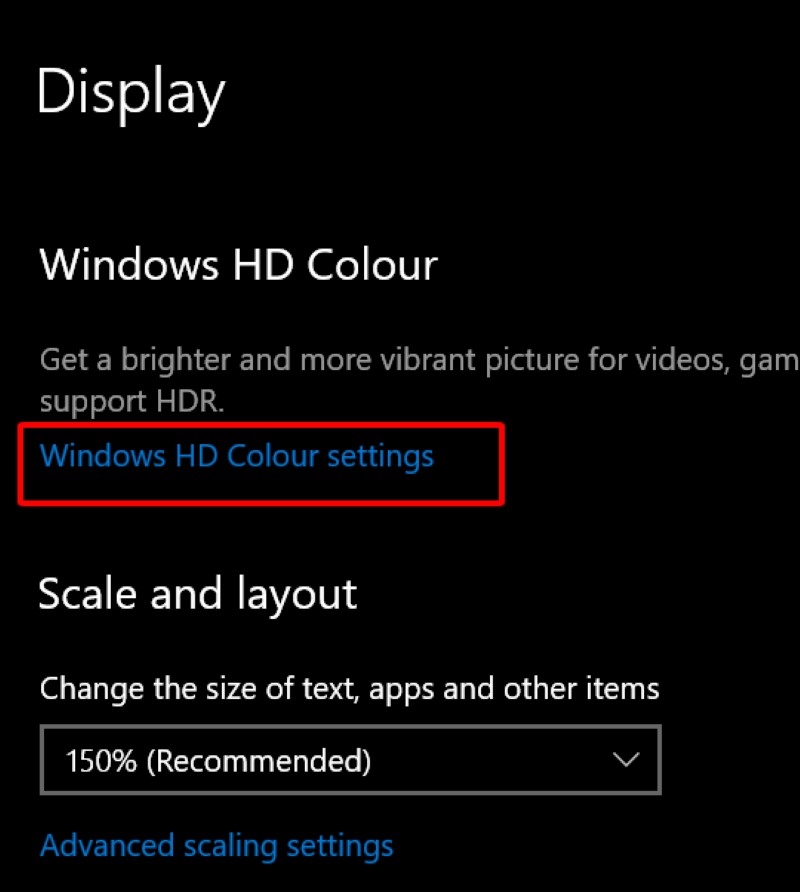
- Windows HDR
- Auto HDR
- Nvidia HDR overlays
Path:
Settings > System > Display > HDR / Windows HD Color settings
> Toggle them off and restart Instant Replay.
2.6 Switch Display Modes
Some games block the overlay when running in certain modes.
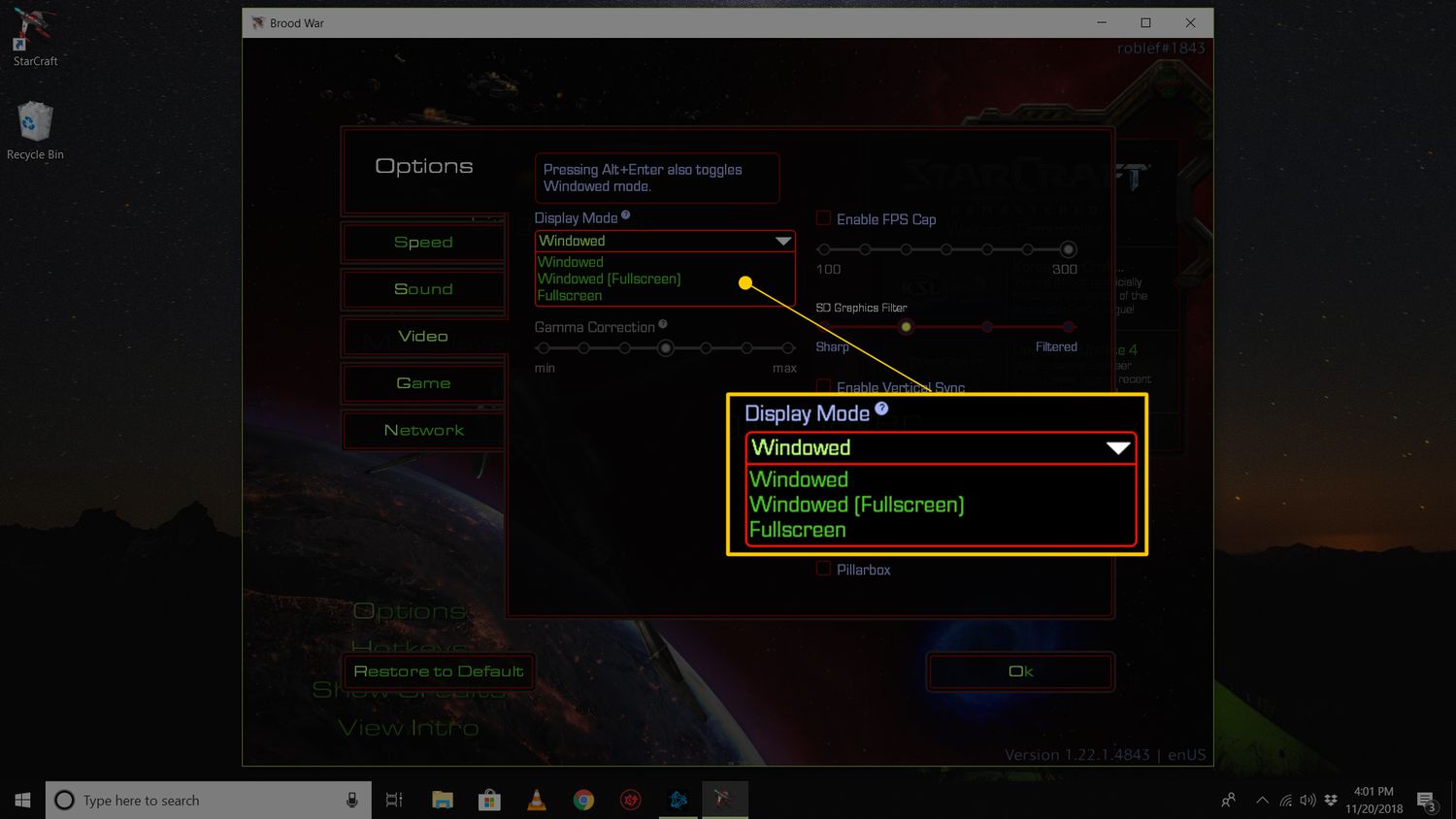
Try switching to:
- Borderless Windowed , ou
- Fullscreen (non-exclusive)
Then re-enable Instant Replay using Alt + Z .
2.7 Reduce Encoding Load
If your GPU is under heavy load, Nvidia may automatically shut off Instant Replay.
Lower recording settings:
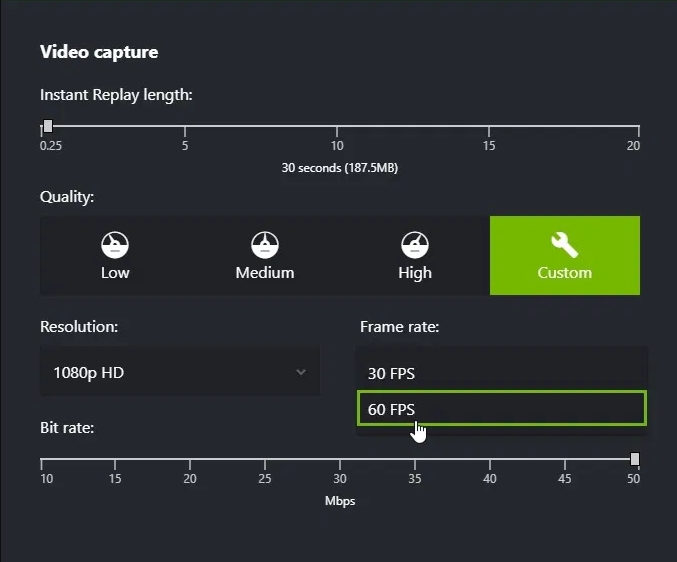
- Alt + Z → Configurações > Ir para Video Capture
- Lower one or more:
- Resolução (1080p → 720p)
- Frame rate (60 → 30 FPS)
- Taxa de bits
This prevents Instant Replay from stopping during intense gameplay.
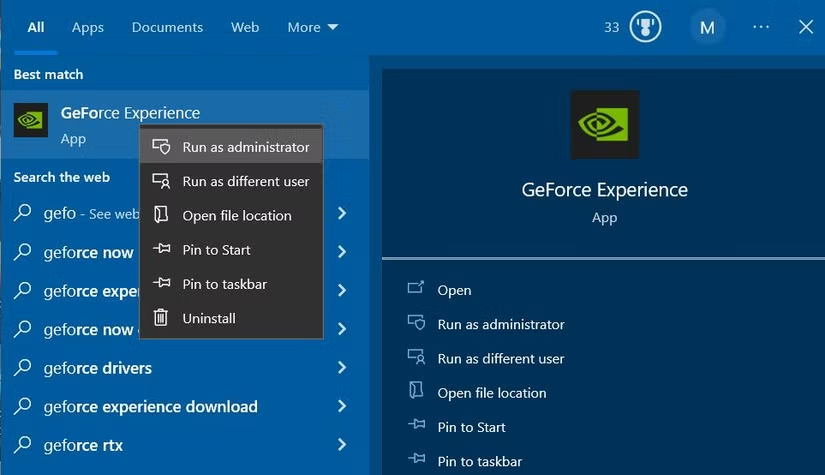
2.8 Run GeForce Experience as Administrator
Windows permissions can interfere with ShadowPlay’s background capture.
Consertar:
- Clique com o botão direito do mouse Experiência GeForce → Executar como administrador .
- Re-enable Instant Replay.
2.9 Disable Battery Saver or Low-Power GPU Mode (Laptop Fix)
ShadowPlay may automatically stop if the GPU drops into low-power state.
Do these:
- Plug in your laptop.
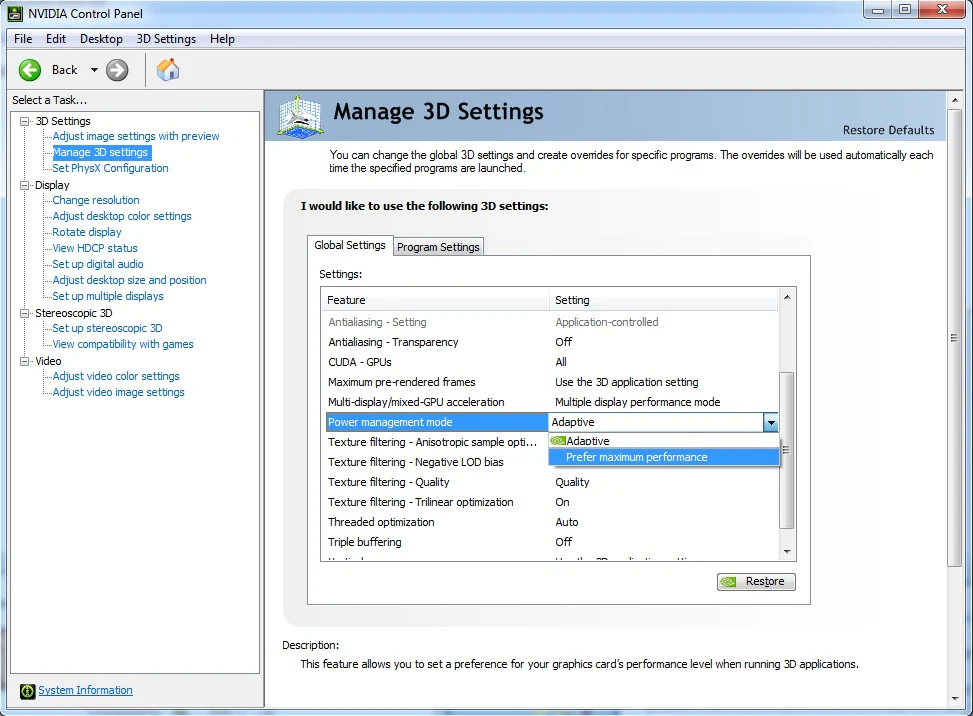
- Abrir NVIDIA Control Panel > Manage 3D settings .
- Definir Power management mode: Prefer maximum performance .
Restart Instant Replay afterward.
2.10 Reinstall GeForce Experience
If all else fails, your GFE installation may be corrupted.
Passos:
- Desinstalar Experiência GeForce from Windows Apps.
- Download the latest version from Nvidia.
- Install fresh and set up Instant Replay again.
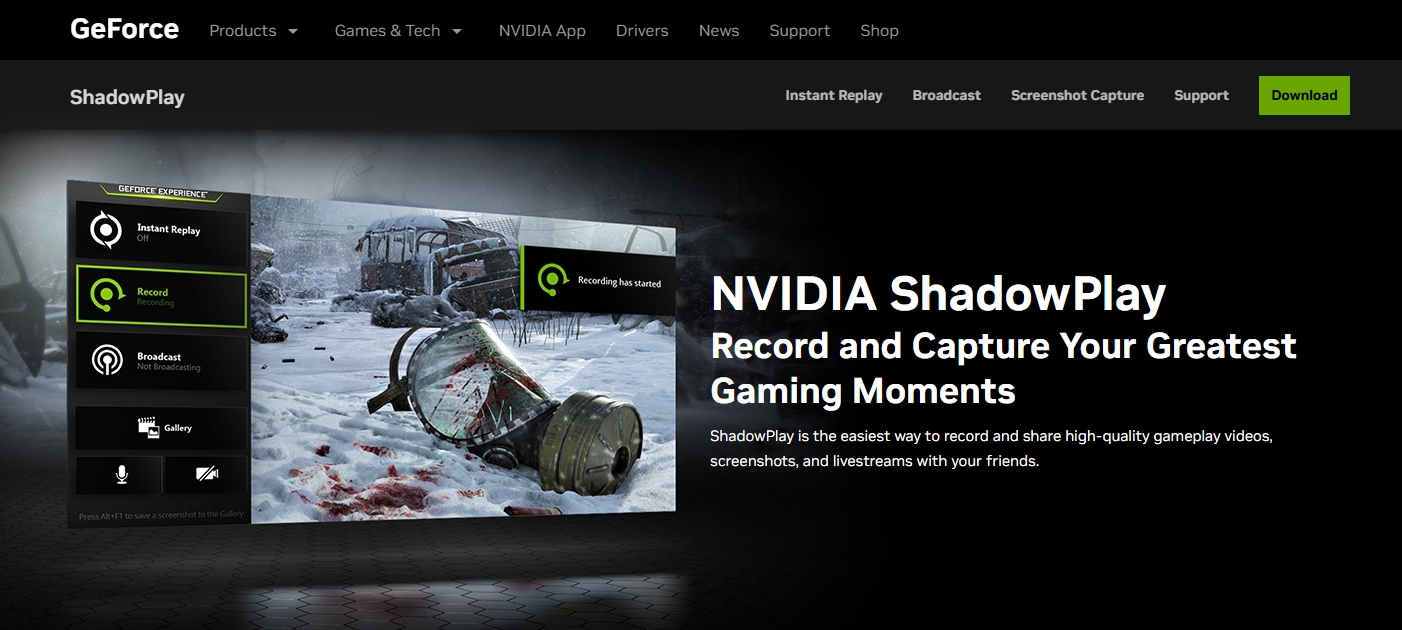
This resolves deep or persistent issues.
3. Try the Instant Replay Feature of a Reliable Screen Recorder — Recordit
If Nvidia Instant Replay is still not working, or you’re tired of troubleshooting it, you may want a more dependable alternative. Swyshare Recordit offers a stable and lightweight replay-style recording feature that doesn’t rely on the GPU overlay or Nvidia services—meaning it avoids all the issues listed above.
Main features of Recordit :
- Instant Replay-style recording — capture the last seconds anytime
- Full screen, window, or custom-area recording
- System audio + microphone capture
- Webcam overlay support
- Quick screenshots with high quality
- Annotations & mouse-click effects & add logo/watermark
- Stable performance without GPU overlay issues
Como usar o Recordit instant replay:
- Download Recordit from the official site and open the app.
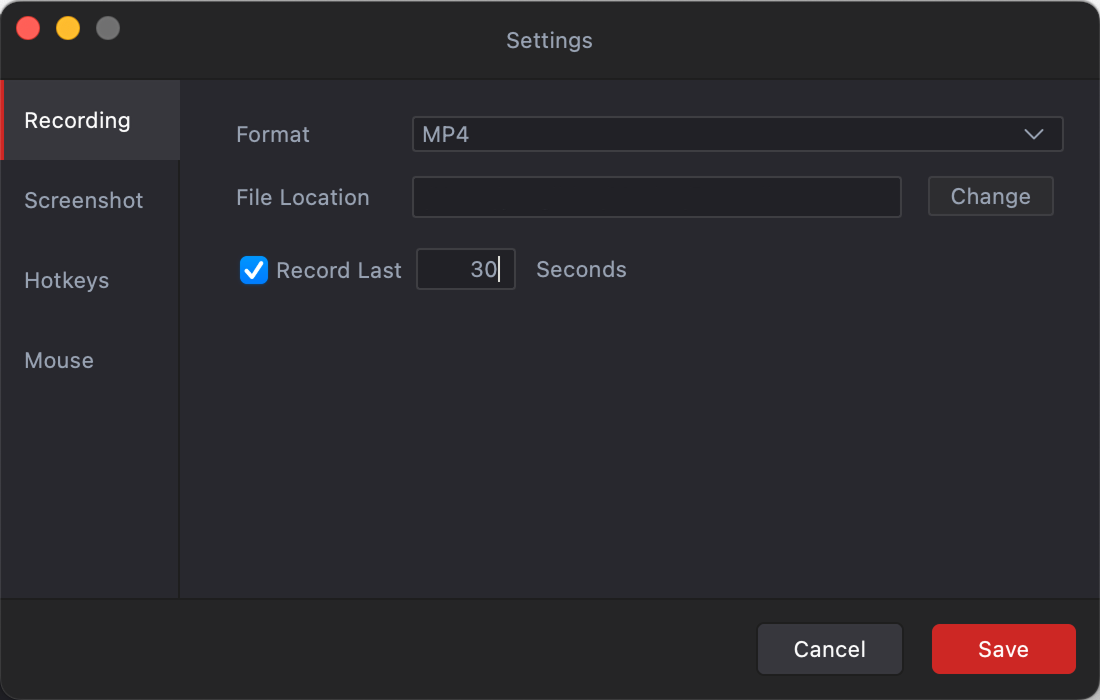
- Go to Settings → Locate Record last ** seconds → Set the length of time you want to capture (e.g., last 15 seconds, 30 seconds, or more).
- Play your game, start recording and Recordit will continuously store the last X seconds in memory.
- When something noteworthy happens, stop recording, Recordit will save the previous few seconds you specified and show it in the “Files” tab.
4. Conclusão
Nvidia Instant Replay is a powerful tool for capturing unexpected highlights, but it can be frustrating when it keeps turning off. Most issues stem from predictable causes like overlay crashes, driver conflicts, disk space, or system settings, and following the troubleshooting steps above usually restores stability.
For those who want a more reliable experience without constant troubleshooting, Recordit offers a stable, lightweight Instant Replay alternative. With features like customizable replay length, audio and webcam capture, annotations, and consistent background recording, Recordit ensures you never miss an important moment—making it an excellent choice for gamers, content creators, and anyone who values hassle-free screen recording.