Como corrigir o código de erro 0x0003 do NVIDIA GeForce Experience?

O NVIDIA GeForce Experience é uma das ferramentas mais utilizadas por jogadores e criadores que dependem de atualizações de drivers sem problemas, otimizações de GPU e gravação de jogos prática através do NVIDIA ShadowPlay. Mas quando o aplicativo repentinamente se recusa a iniciar e exibe a seguinte mensagem: “Algo deu errado. Tente reiniciar o seu PC e, em seguida, abra o GeForce Experience. Código de erro: 0x0003” Tudo para. Esse problema impede que os usuários atualizem drivers, otimizem jogos ou usem a gravação do ShadowPlay, tornando-se um grande obstáculo para quem depende da placa de vídeo para jogos ou criação de conteúdo.
Este guia explica por que o código de erro 0x0003 aparece e fornece as etapas de solução de problemas mais eficazes.
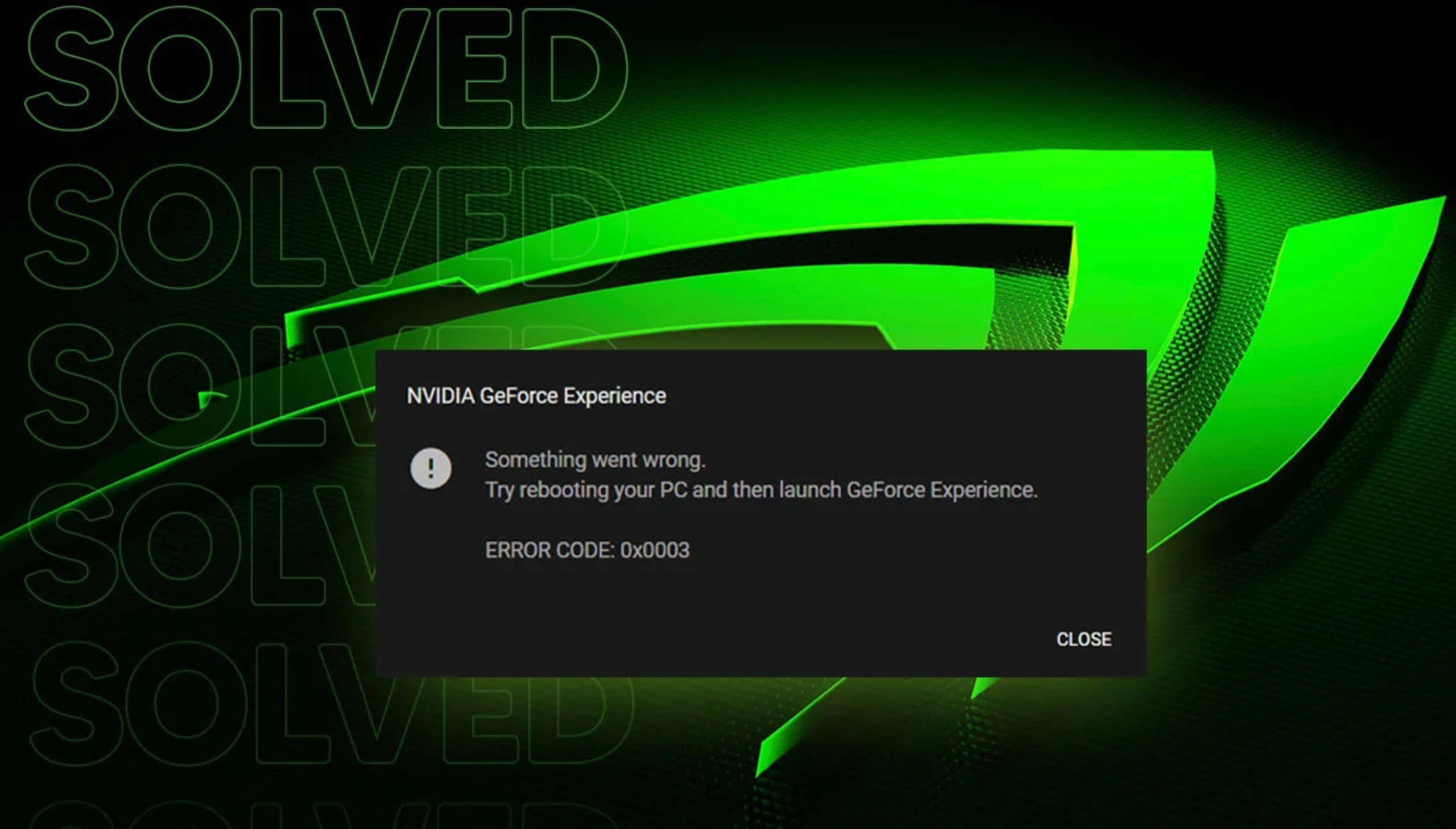
1. Por que Ocorre Código de erro 0x0003 do NVIDIA GeForce Experience?
O código de erro 0x0003 significa que serviços essenciais da NVIDIA não estão funcionando corretamente. Esses serviços gerenciam a comunicação do driver, as configurações de exibição, a telemetria, os recursos de login e muito mais. Quando um ou mais serviços falham, o GeForce Experience não pode ser iniciado.
Aqui estão as causas mais comuns, em resumo:
- Os serviços da NVIDIA foram interrompidos ou desativados.
(especialmente os serviços Display Container LS, LocalSystem Container e Telemetry) - Drivers de GPU corrompidos ou desatualizados
Geralmente causado por falhas em atualizações, interrupções de energia ou patches do Windows. - Problemas de configuração do adaptador de rede
A corrupção do Winsock pode bloquear os serviços de comunicação da NVIDIA. - Arquivos do GeForce Experience corrompidos
Componentes defeituosos ou ausentes do programa impedem a inicialização do aplicativo. - Conflitos com VPNs, firewalls ou ferramentas antivírus
Esses processos podem bloquear os processos em segundo plano da NVIDIA.
Como a causa principal geralmente é uma falha de serviço ou corrupção do sistema, as correções abaixo resolvem o erro para a maioria dos usuários.
2. Como corrigir o código de erro 0x0003 do NVIDIA GeForce Experience?
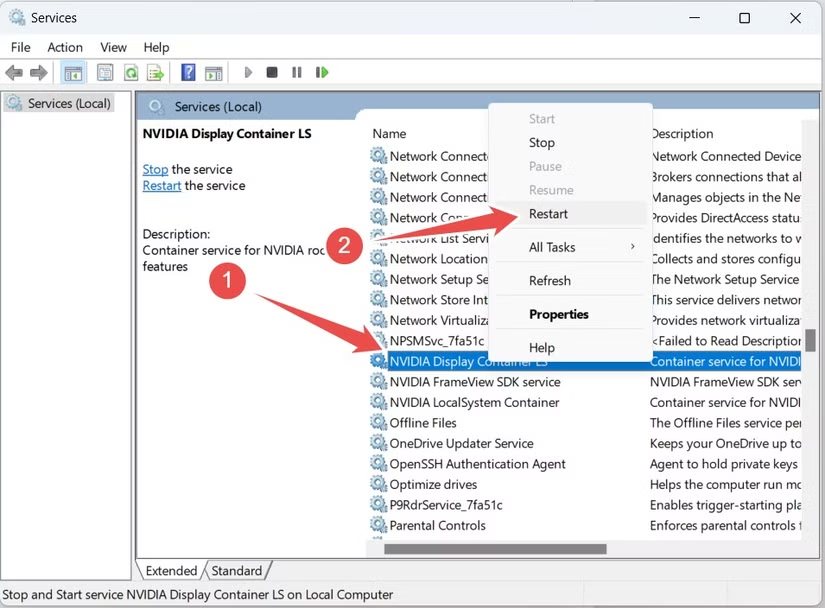
2.1 Reinicie todos os serviços da NVIDIA
A solução mais rápida é simplesmente reiniciar os serviços da NVIDIA necessários.
- Abra a caixa de diálogo Executar com
Ganhar + R
, tipo
services.msce pressione Digitar Para abrir os Serviços. - Procure por estes serviços:
- NVIDIA Display Container LS
- Contêiner do Sistema Local da NVIDIA
- Contêiner de serviço de rede NVIDIA
- Contêiner de telemetria NVIDIA
- Clique com o botão direito em cada um deles → Reiniciar .
- Garantir que eles Tipo de startup está definido para Automático .
Se a telemetria não iniciar:
- Abrir Propriedades → guia Entrar
- Selecione Conta do sistema local
- Verificar Permitir que o serviço interaja com a área de trabalho
- Clique Aplicar e inicie o serviço novamente.
Somente essa etapa corrige o erro 0x0003 para muitos usuários.
2.2 Reinicie o seu adaptador de rede (Reinicialização do Winsock)
O GeForce Experience depende de uma comunicação de rede estável, e configurações de rede incorretas podem causar o erro 0x0003.
- Abrir Prompt de comando como administrador
- Digite: netsh winsock reset
- Reinicie o seu PC
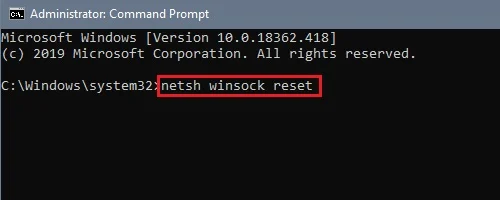
Se o problema foi causado por corrupção de rede, ele já foi resolvido.
2.3 Reinstale completamente seus drivers NVIDIA
Drivers corrompidos causam mais erros 0x0003 do que você imagina. Uma reinstalação limpa garante que todos os arquivos corrompidos sejam substituídos.
Método A: Se o GeForce Experience abrir
- Vou ao Motoristas guia
- Baixe o driver mais recente.
- Escolher Instalação personalizada
- Habilitar Realize uma instalação limpa
Método B: Reinstalação limpa através do Gerenciador de Dispositivos
Se o GeForce Experience não iniciar:
- Clique com o botão direito do mouse Iniciar → Gerenciador de Dispositivos
- Expandir Adaptadores de vídeo
- Clique com o botão direito do mouse na sua GPU NVIDIA → Desinstalar dispositivo
- Verificar Exclua o software de driver deste dispositivo.
- Reinicie o seu PC
- Instale o driver mais recente do site da NVIDIA.
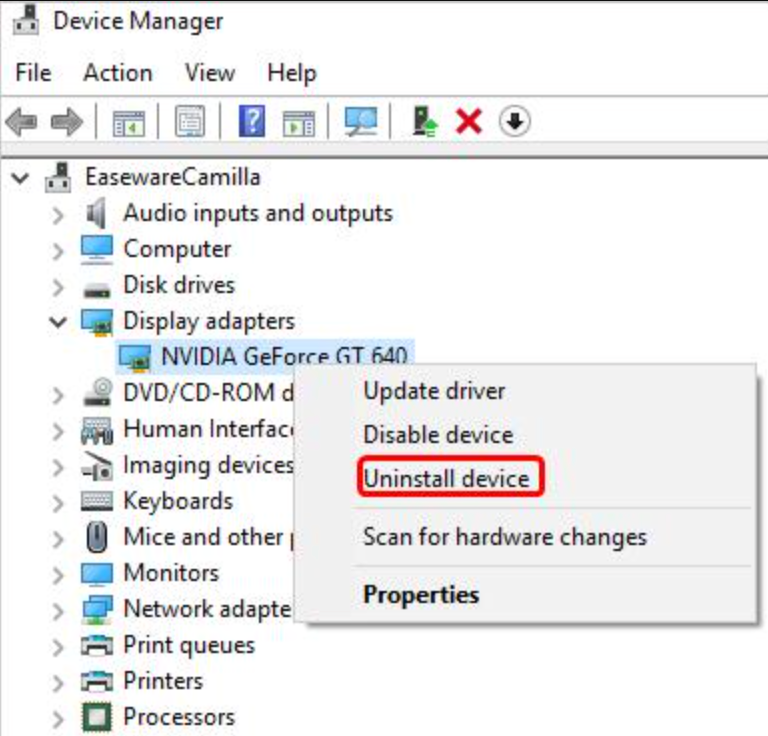
Este método redefine completamente o ambiente do driver da sua GPU.
2.4 Reinstale o NVIDIA GeForce Experience
Se o próprio GeForce Experience estiver corrompido, a solução mais simples é reinstalá-lo.
- Imprensa Ganhar + R → tipo appwiz.cpl
- Desinstalar NVIDIA GeForce Experience
- Reinicie o seu PC
- Baixe a versão mais recente no site oficial da NVIDIA.
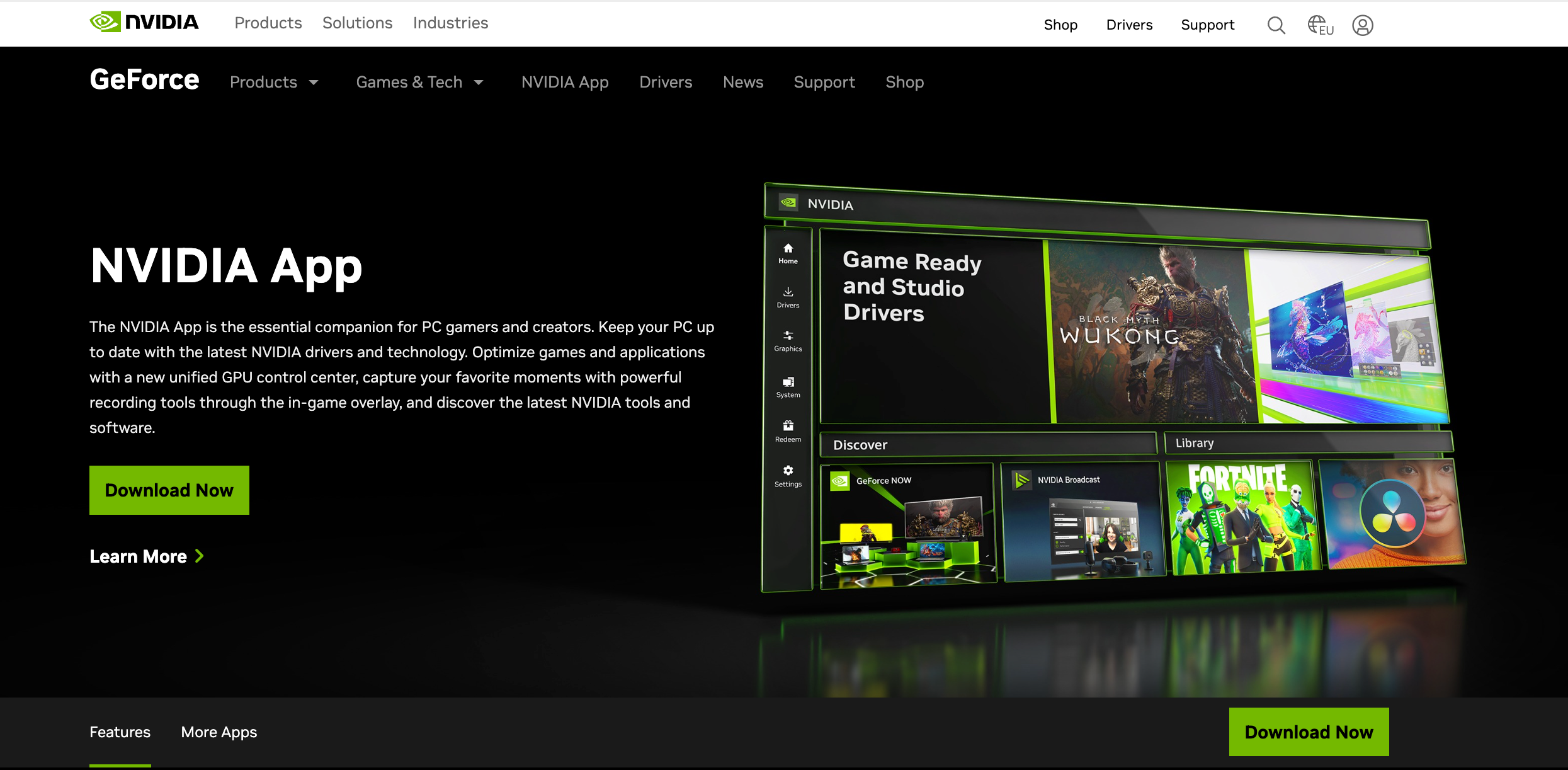
Se o erro foi causado por um arquivo de programa corrompido ou por uma dependência ausente, esta correção resolve o problema.
Atualização 2.5 do Windows
Atualizações do Windows desatualizadas ou parcialmente instaladas interferem com os componentes da NVIDIA.
Vá para:
Configurações → Windows Update → Verificar atualizações
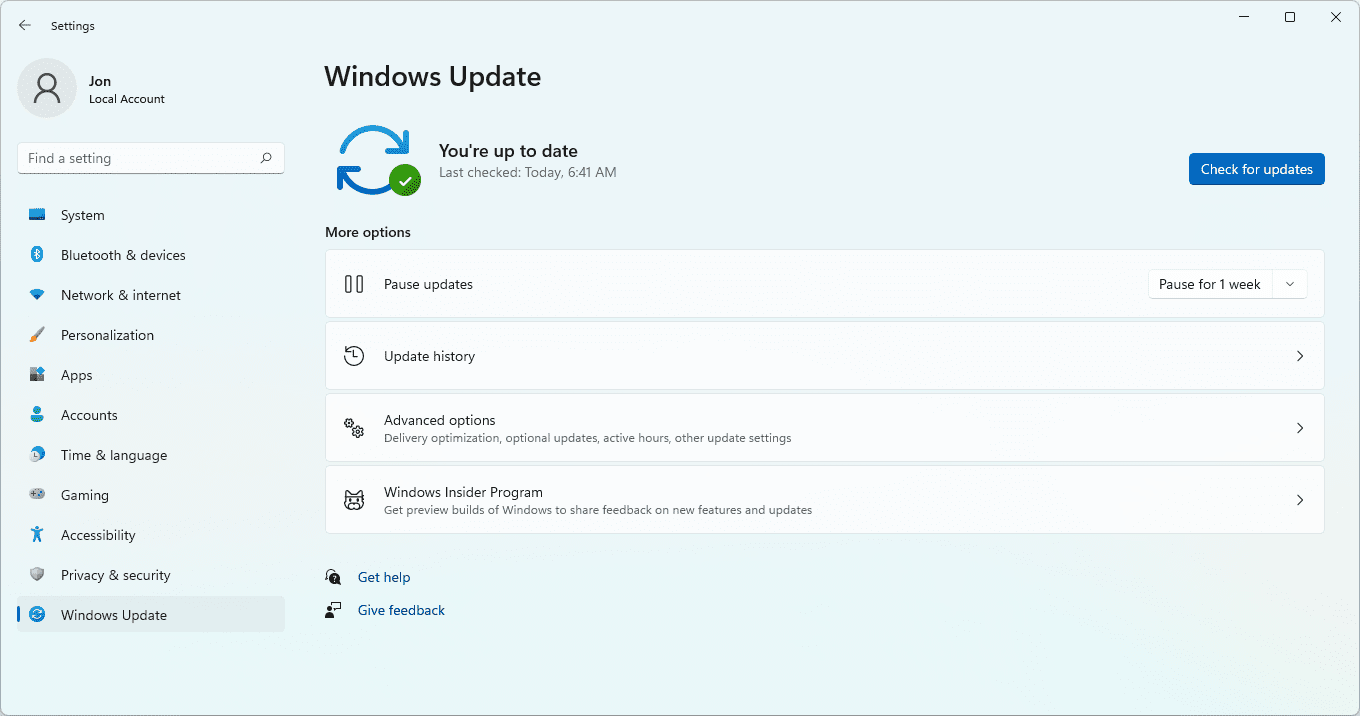
Instale tudo, reinicie o computador e tente abrir o aplicativo novamente.
2.6 Desative conflitos de VPN, firewall ou antivírus
Alguns aplicativos de terceiros bloqueiam os serviços da NVIDIA, especialmente os relacionados à rede.
Desativar ou sair temporariamente:
- Avast
- Bitdefender
- Configurações de firewall rigorosas
- Serviços de VPN como NordVPN, ExpressVPN ou Surfshark
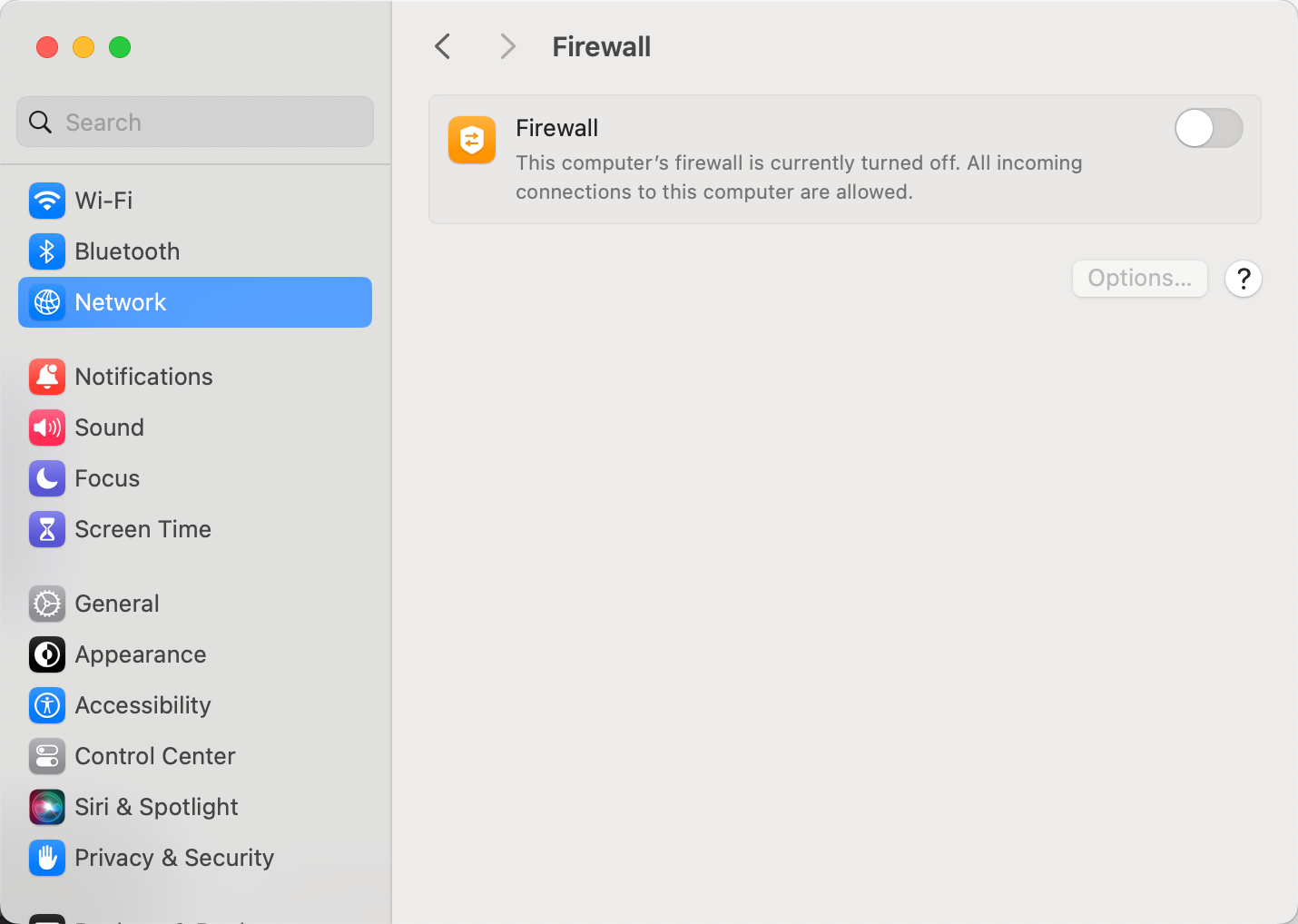
Em seguida, reinicie o GeForce Experience para verificar se o conflito era a causa.
2.7 Criar um novo perfil de usuário do Windows
Se sua conta de usuário estiver corrompida, os serviços da NVIDIA podem não ter a permissão adequada para serem executados.
- Abrir Configurações → Contas → Família e outros usuários → Adicionar outra pessoa ao PC
- Criar um nova conta local
- Faça login e experimente o GeForce Experience.
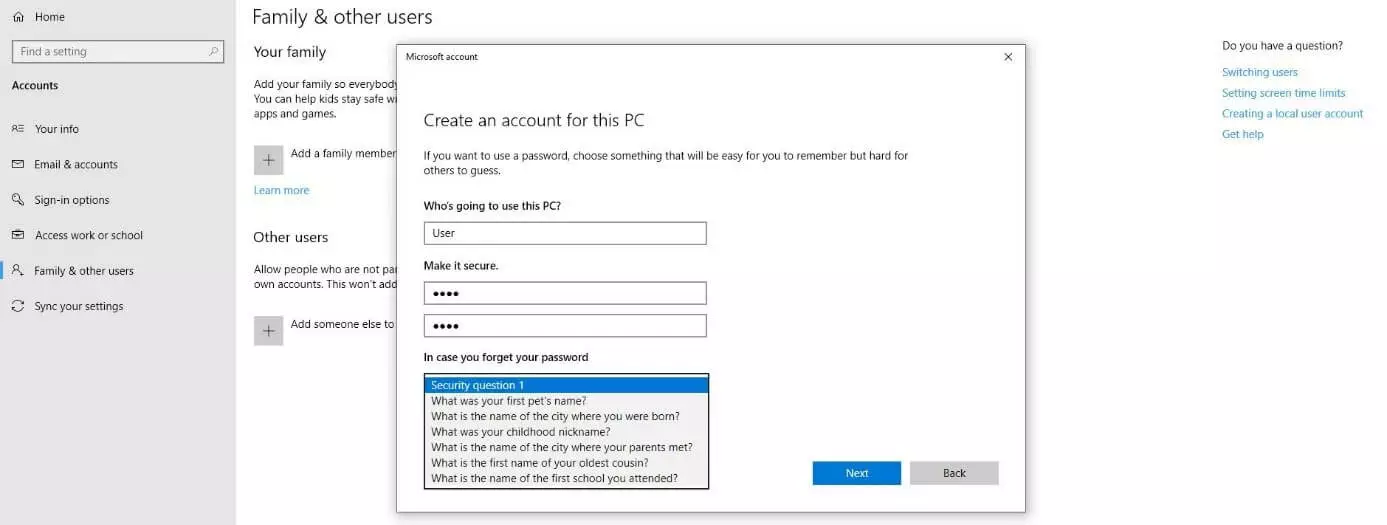
Se funcionar na nova conta, significa que seu perfil antigo tem permissões corrompidas.
3. Grave suas partidas facilmente, sem erros da NVIDIA — Experimente Swyshare Recordit
O código de erro 0x0003 é especialmente problemático quando você depende do ShadowPlay para gravar jogos. Quando os serviços da NVIDIA param de funcionar, o ShadowPlay para de funcionar completamente — e se o erro persistir, a gravação se torna instável.
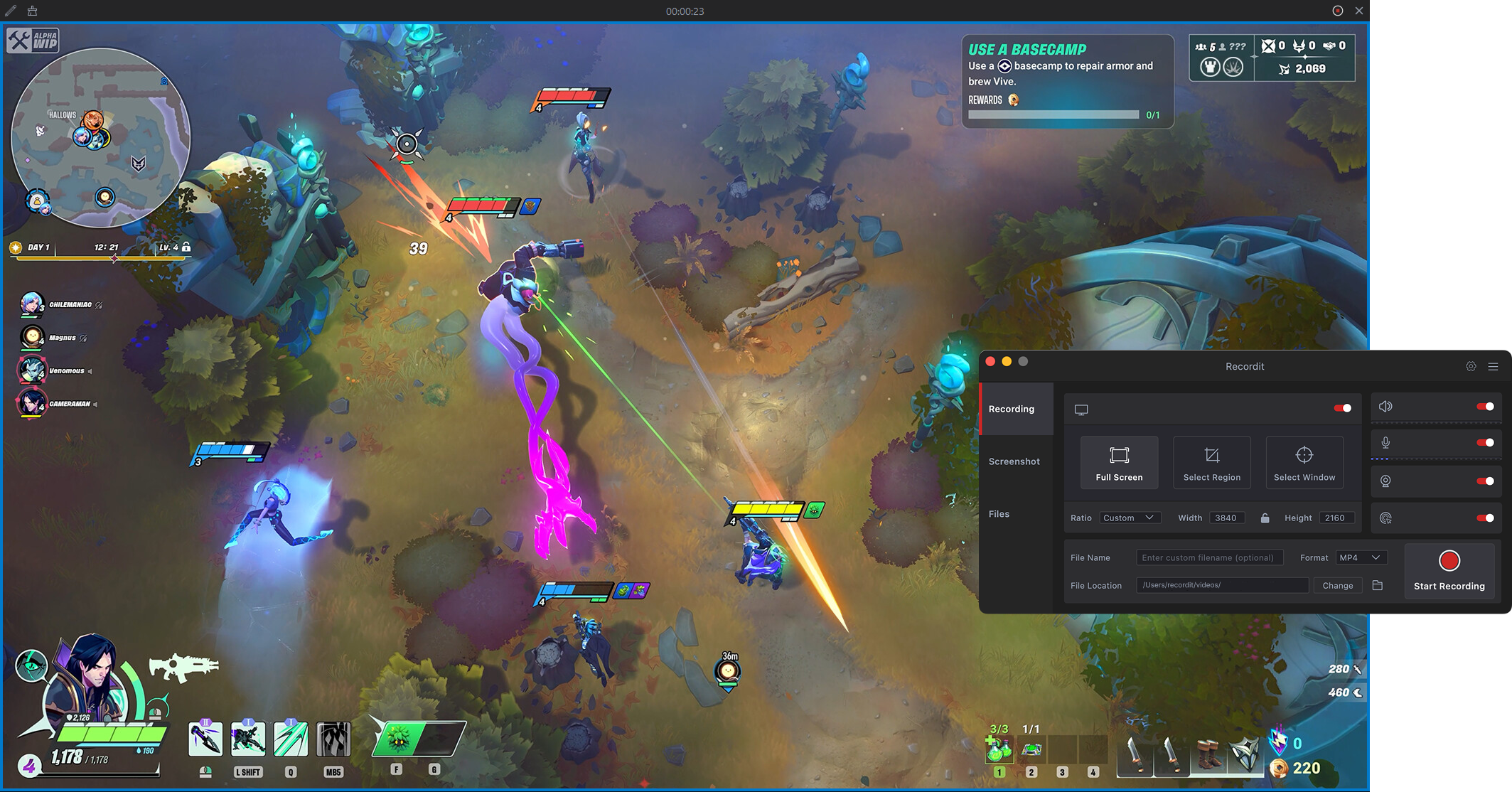
É por isso que muitos jogadores e criadores usam Swyshare Recordit , um gravador de tela leve que captura sua tela com fluidez todas as vezes — sem configurações complicadas, sem erros relacionados ao serviço e sem conflitos de sistema.
Principais características de Recordit :
- Extremamente fácil de usar — um clique para começar.
- Gravação em tela cheia, janela ou região
- Sistema de gravação de áudio + microfone
- Sobreposição de webcam para tutoriais ou reações
- Horários programados de início/término da gravação
- Recurso de reprodução instantânea "Gravar os últimos X segundos"
- Salva arquivos MP4 de alta qualidade que você pode usar em qualquer lugar.
- Funciona sem serviços ou drivers da NVIDIA.
Como usar Recordit :
- Instalar Swyshare Recordit Baixe a versão para Windows ou Mac e execute-a no seu dispositivo.
- Abra o jogo e depois use Recordit Para escolher o modo de gravação, ativar o áudio, adicionar a webcam e definir os parâmetros de saída.
- Clique em Iniciar Gravação para começar a capturar a tela do seu jogo.
- Pressione "Parar gravação" ou use a tecla de atalho para finalizar e, em seguida, localize e visualize o vídeo na guia "Arquivos".
4. Conclusão
O código de erro 0x0003 do NVIDIA GeForce Experience pode parecer assustador, mas a maioria das causas — serviços interrompidos, drivers desatualizados, configurações de rede corrompidas ou arquivos de programa danificados — são fáceis de corrigir, basta saber onde procurar. Reiniciando os serviços da NVIDIA, redefinindo o Winsock, reinstalando os drivers e atualizando o GeForce Experience, geralmente é possível restaurar o aplicativo em poucos minutos.
No entanto, se você depende da gravação de jogos e deseja uma ferramenta mais fácil e estável que não pare de funcionar após atualizações de drivers, Swyshare Recordit É uma excelente alternativa. Funciona em qualquer PC, evita completamente problemas relacionados à NVIDIA e oferece gravações suaves e de alta qualidade sempre. Para jogadores e criadores que desejam confiabilidade sem dores de cabeça com a solução de problemas, Recordit é geralmente a melhor escolha.